Every AI video tool gives you a prompt box. Most also give you a gallery. Almost none give you a project.
That gap shows up the moment you try to make something longer than a clip. A ten-episode drama is not forty prompts. It is a cast that has to look the same in episode seven as in episode one, a script that has to be split cleanly, a shot list per episode, a blocking sketch per shot, a music bed that fits the mood, subtitles, and a final cut for each episode. Somewhere in there you also need to remember what you decided last Tuesday.
Plot Party Studio is our answer. It is an agent-native workbench where you brief an agent in plain language, and the agent writes, casts, generates, and files every result into a tree of files you own. It is in early access now, and it is built for full dramas of thirty minutes and up.
This post walks through what Studio is, how the workbench is laid out, what the six tools and the agent can each do, how skills and memory keep a long production coherent, and how credits work.
The One-Line Version
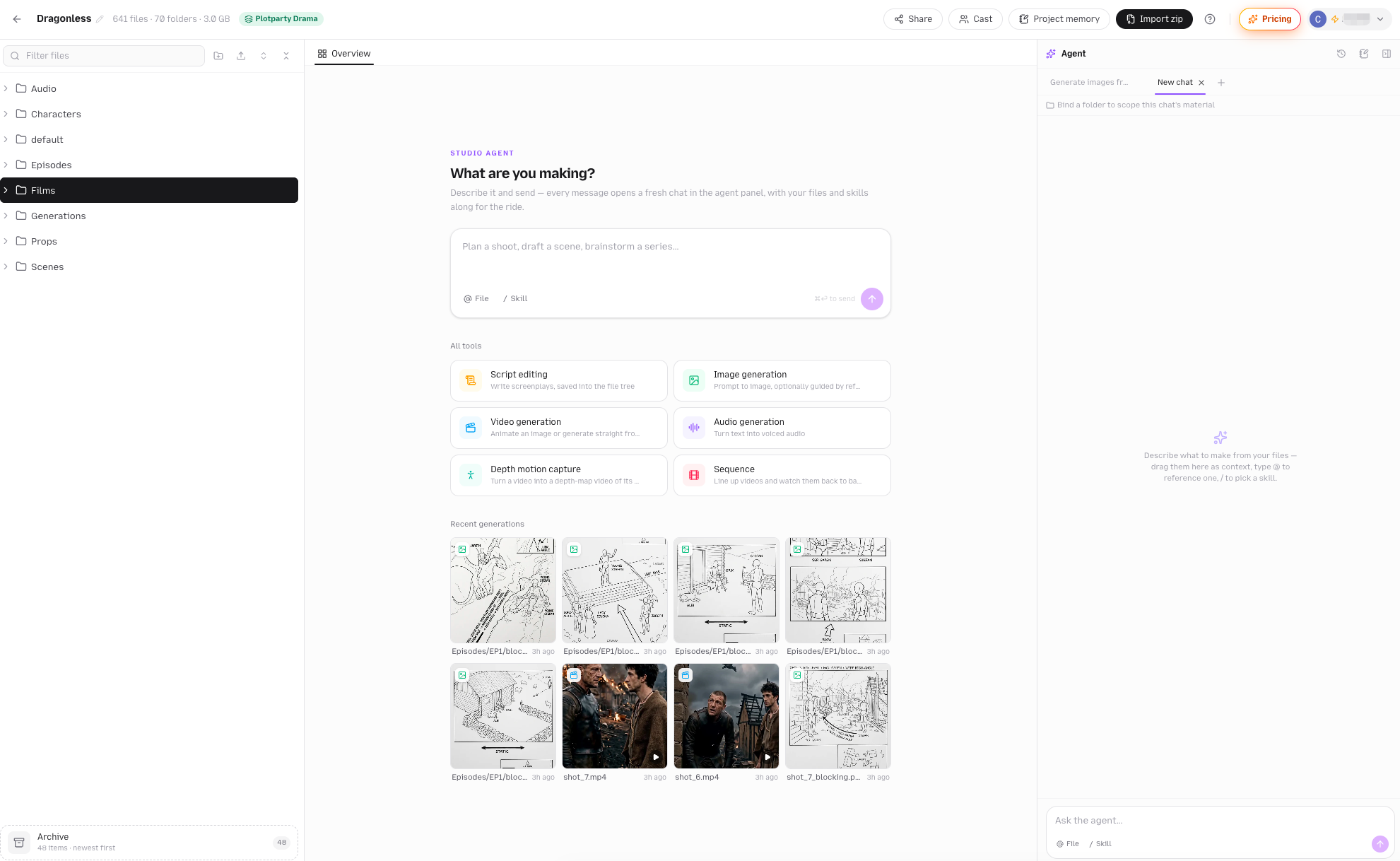
Studio is three columns. On the left, a file tree holding everything you uploaded and everything the agent made. In the middle, a tabbed stage that opens files, folders, and tools like a code editor. On the right, an agent panel where each chat is its own session, with its own memory, and can be scoped to one folder and bound to one skill.
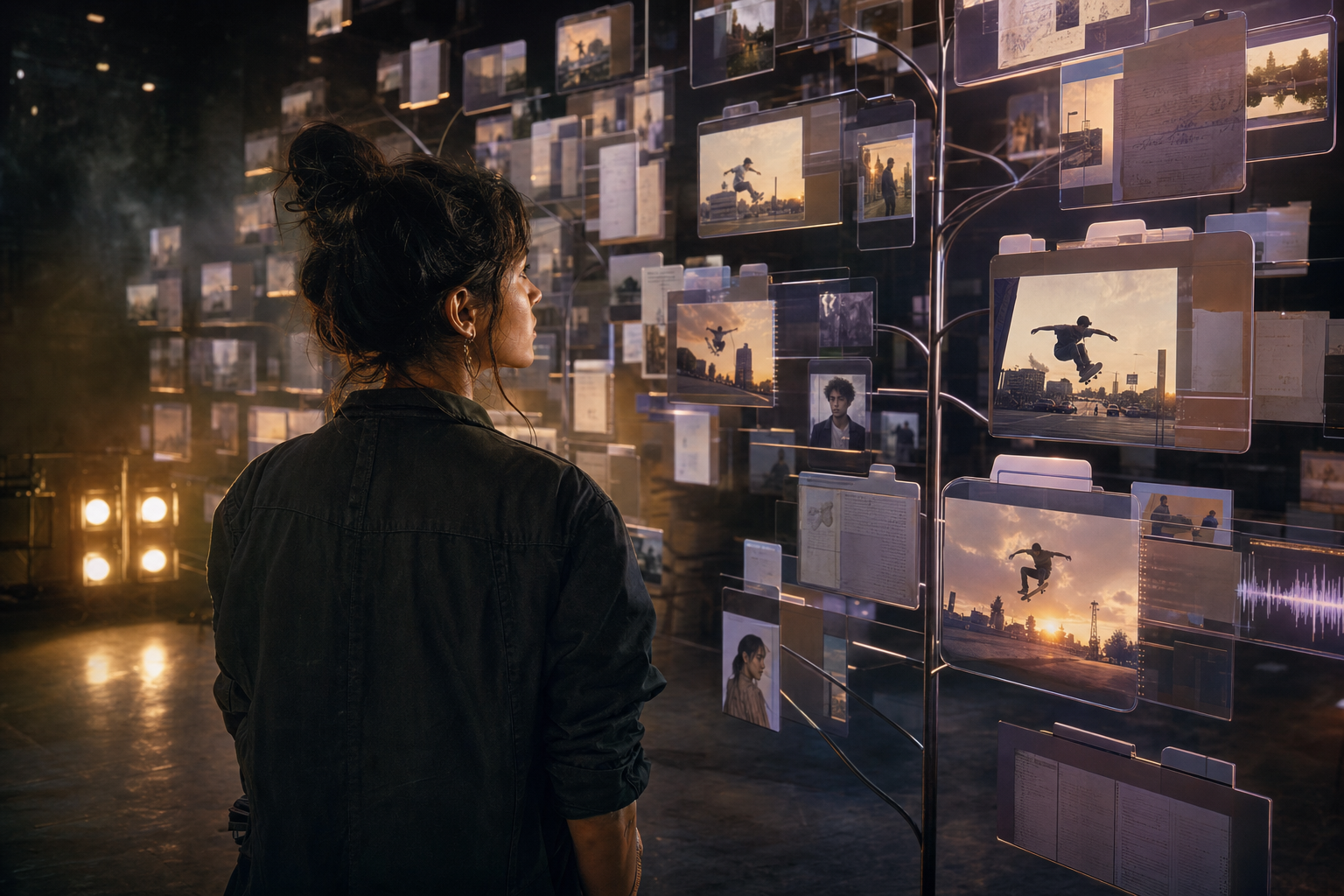
The rule that ties it together: everything is a file. Scripts, character sheets, scene plates, blocking sketches, shot lists, every clip, every voice line, the music, and the final film per episode all land in the same tree. You can click any of them, drag them onto a chat as context, drag them onto a tool as a reference, and right-click them for more.
The first-run tour puts it this way:
"Say what you're making — a series, an episode, a single scene. The agent writes, casts, generates and files every result into the tree."
The Workbench, Column by Column
Left: Everything Is a File
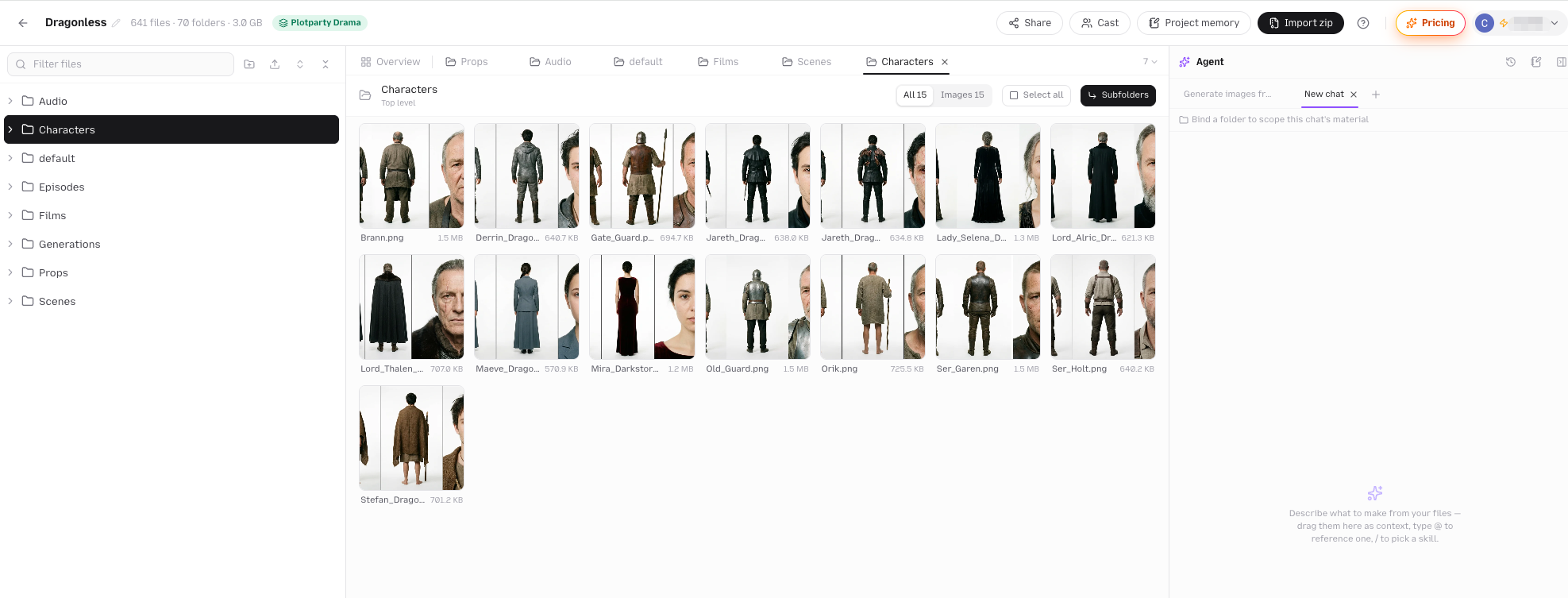
The tree is where a Studio lives. Upload images, video, audio, and documents (.txt, .md, .pdf, .csv, .docx), or drop a .zip and its folders become your tree. New folder, rename, copy, drag to move, multi-select with Cmd and Shift, download a selection as a zip with paths intact.
Two details matter for a long production.
Generations have a home. Anything the agent or a tool makes lands in a Generations folder by default, or in the folder a chat is bound to. When you regenerate from a file's saved setup, the new version lands next to the source, so iterations on one shot stay together. In the screenshot above, you can see the Generations folder holding three video attempts from the same prompt, one marked Failed in red, with the skater_1.png and skater_2.png stills that seeded them.
Old versions go to Archive, not to the void. A regeneration that succeeds displaces the previous version into a root Archive folder. Anything you shelve by dragging onto the Archive card at the bottom of the tree goes there too. It is recoverable with a plain restore. The agent never sees Archive as material, never uses it as a reference, and never writes into it. One live version per asset is a hard rule.
Middle: Tabs, Like a Code Editor
Click a file and it opens as a tab. Click a folder and you get a gallery. Drag a tab to the edge of the stage and you get two panes side by side, so a shot list can sit next to the clip it describes. Pin a tab to keep it through Close All. Tab state survives a reload.
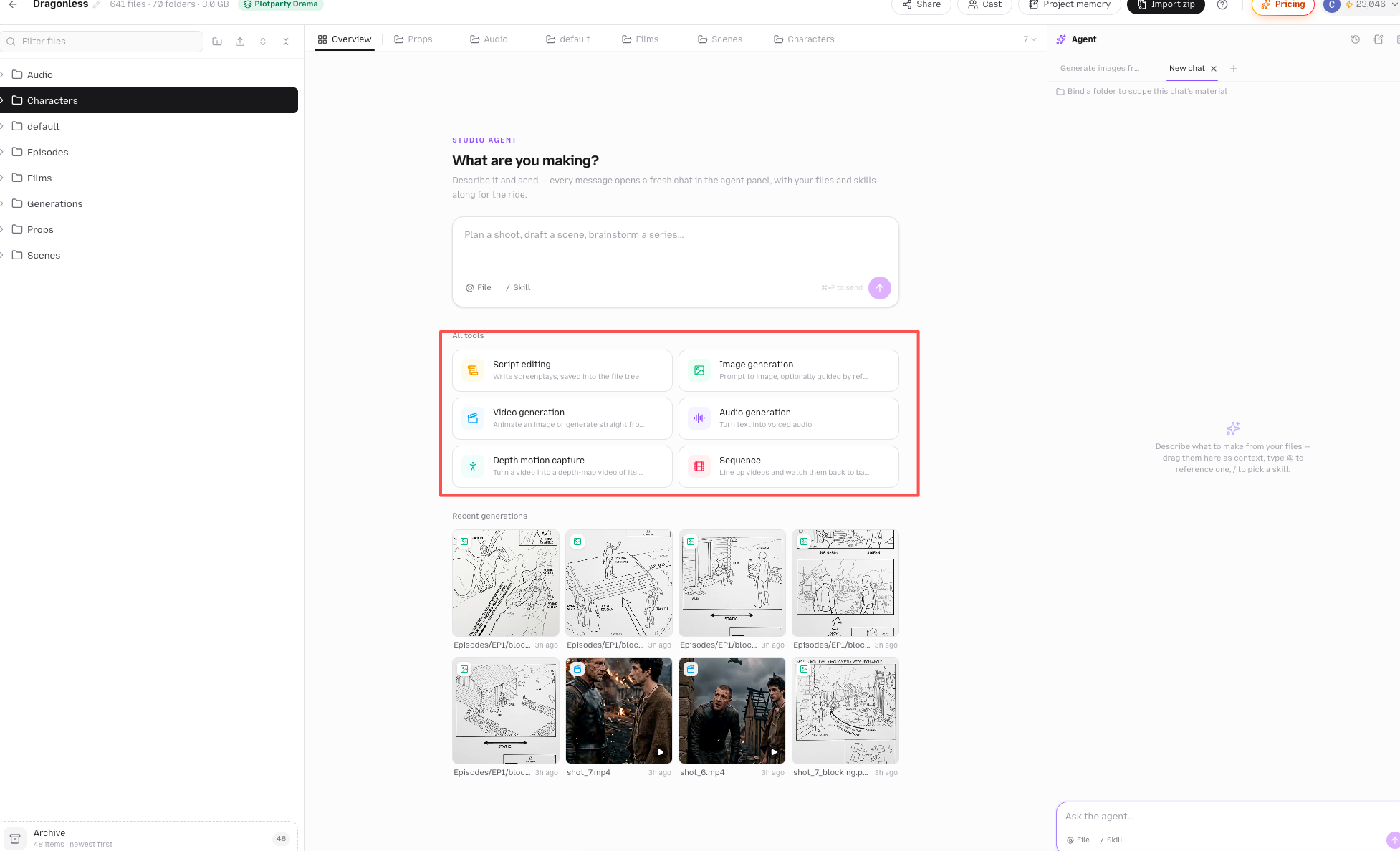
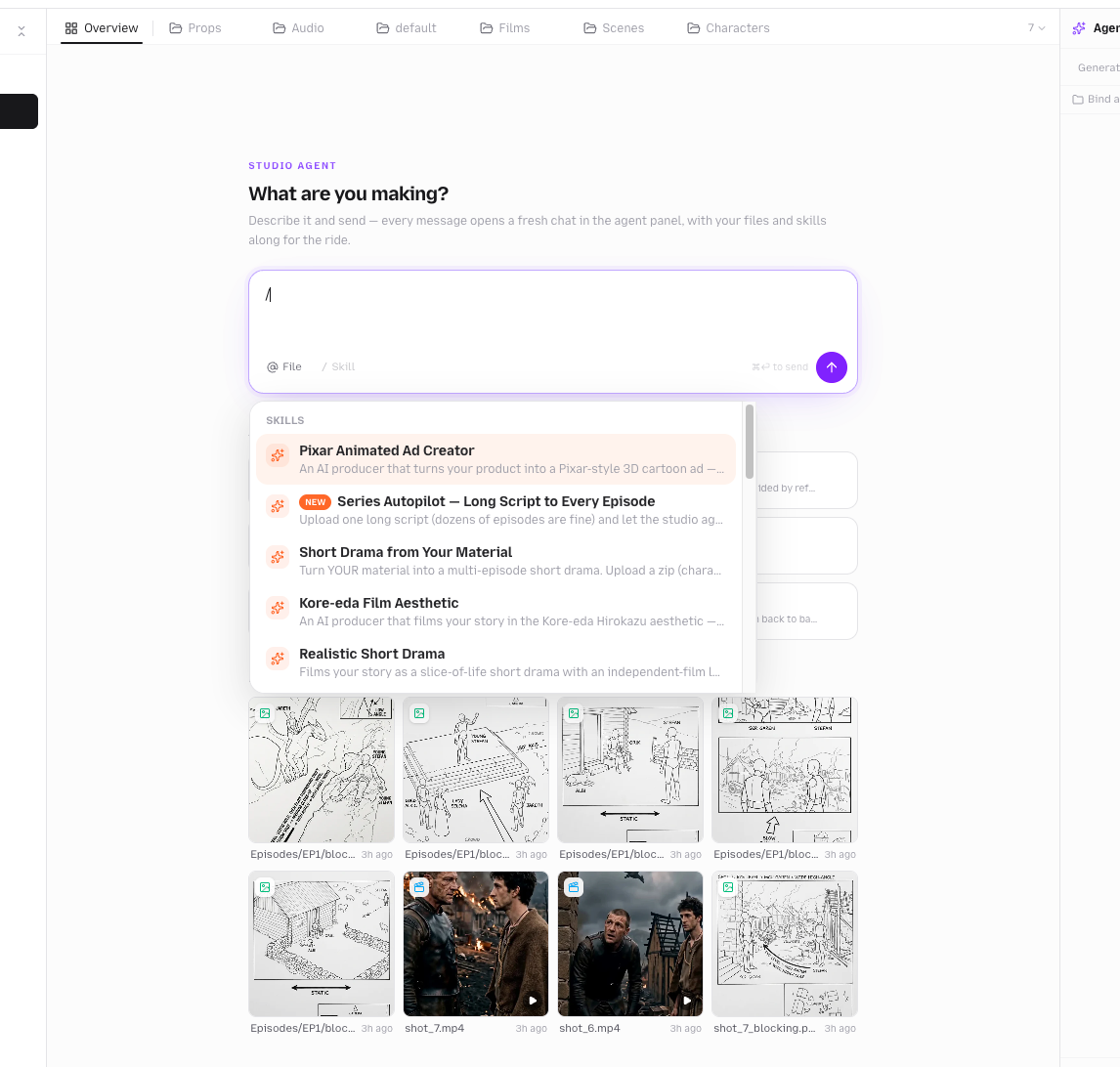
The resident tab is Overview, and it works like an editor's new-tab page. At the top is the agent composer, labeled What are you making?, with the hint Plan a shoot, draft a scene, brainstorm a series.... Type there and press Cmd+Enter, and your message opens a fresh chat in the panel on the right, with your files and skills along for the ride. Below it are the six tools, and below those, your eight most recent generations.
Right: The Agent Panel
The agent panel is tabbed by conversation. Press the plus to open a new chat. Each chat is a separate agent session with its own memory. Close a chat and it stays readable in History, where you can reopen it.
Three affordances live in the composer, and they are the same everywhere the agent listens:
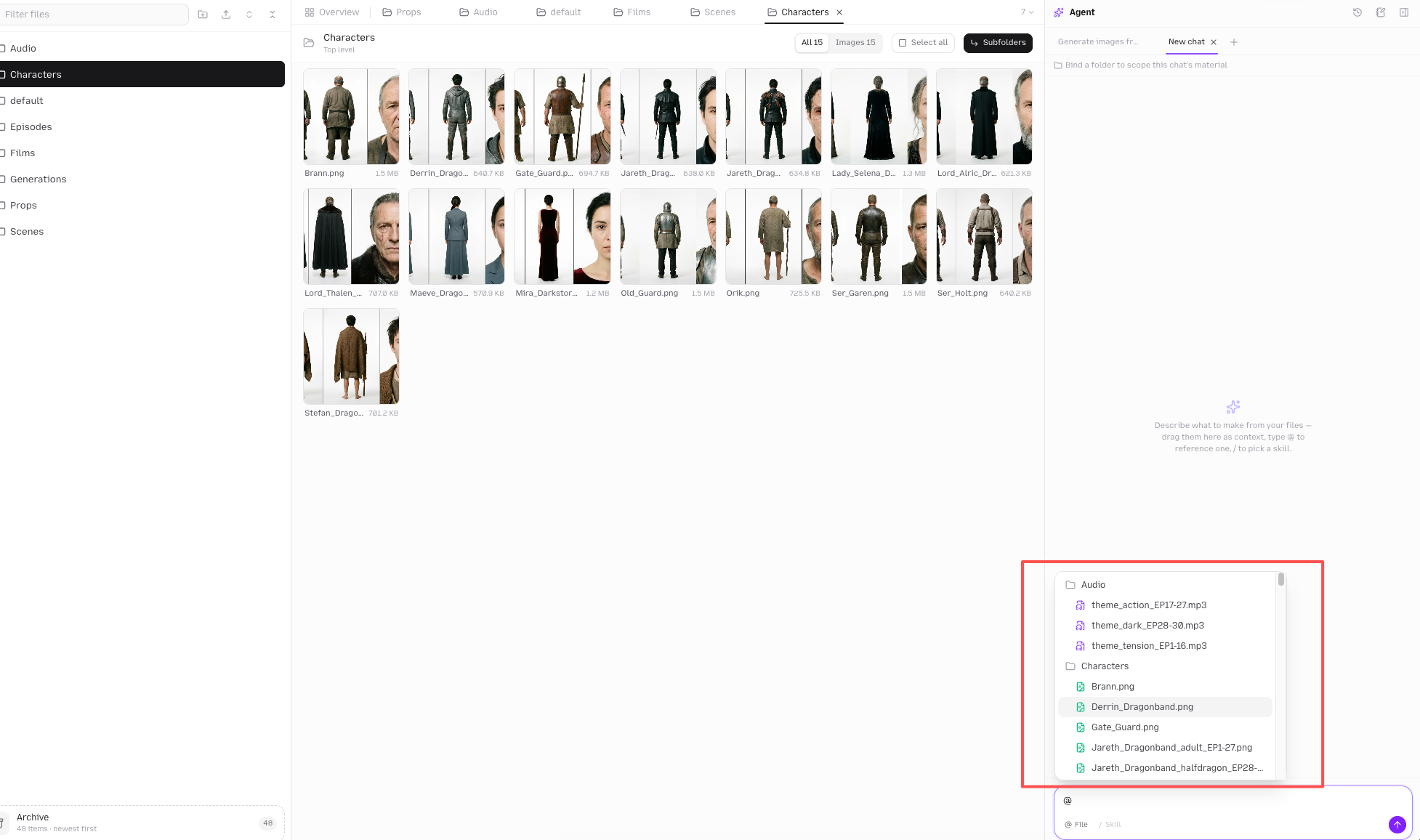
- @ File. Type
@ and a dropdown mirrors your tree. Pick a file or a folder, and it travels with the message as context. You can also drag a file from the tree onto the chat, or drop a file from your desktop, which uploads it into the tree first and then attaches it. - / Skill. Type
/ at the start of a message to bind a skill to the chat. More on skills below. - Bind a folder. Above the messages sits a scope bar: Bind a folder to scope this chat's material. Bind
Episodes/EP3/ and every request in that chat reads from and writes into that folder. An @ on a single message can still widen one turn. The server enforces the priority: an attached folder beats the bound folder, which beats a file you name in plain text, which beats the agent's own judgment.
When the agent works, you see a collapsed steps card that expands to show each action: reading a file, writing the script, generating, waiting for generation, merging the film, transcribing dialogue, burning in subtitles, updating memory. Each step shows its duration and whether it failed. A Stop button rolls the turn back and returns your message and attachments to the composer, so nothing is lost if you change your mind.
The agent can do every step. Sometimes you want to do one yourself. The Overview lists six tools, and the tour describes them honestly:
"Image, video, audio, depth, script and sequence tools for when you'd rather drive. Bring your own prompt and references — the result still files into the tree."
| Tool | What it does | Notes |
|---|
| Script editing | Write screenplays, saved into the file tree | A screenplay editor with scene, character, dialogue, parenthetical, and transition blocks. One-click Autoformat lets AI mark up structure without rewriting a word, for 1 credit, with undo. |
| Image generation | Prompt to image, optionally guided by reference images | Drag references from the tree into slots. Mention them as @Reference1 in the prompt. |
| Video generation | Animate an image or generate straight from text | Supports first-frame and first-to-last-frame setups when the model does. Pick any image-to-video model your plan includes. |
| Audio generation | Turn text into voiced audio | Speech models expose a voice picker filtered by language. Music models take a mood description. |
| Depth motion capture | Turn a video into a depth-map video of its motion | Feed a real clip in, get a motion reference out. |
| Sequence | Line up videos and watch them back to back | A rough-cut viewer. Drag clips from the tree, reorder in the filmstrip. It is a viewing order, not a render. |
Every generated file remembers how it was made. Right-click one and choose Reuse setup to load its prompt, model, references, and settings back into the tool, tweak, and regenerate. Right-click an image and send it to Image generation as a reference, to Video generation as a first frame, or to the Video editor onto the timeline. Right-click a video and send it to Depth motion capture as a source.
What the Agent Actually Does
Under the hood, the Studio agent has a toolkit of about two dozen actions. The ones you will notice:
- Generate media. Images, video, music, and voiced lines, all asynchronous, all landing in the tree. Up to eight reference images per call, bound as
@Reference1 through @Reference8. - Write and extract scripts. It writes
script.md and shot_list.md per episode. When you upload your own long script, it cuts each episode out verbatim into script.txt with no rewriting. - Read long documents by outline. A hundred-page script is read by outline, then by section or episode, not stuffed into one prompt.
- Merge, subtitle, and score. Merging clips into a film, transcribing dialogue into
.srt, and burning subtitles in are all free. It picks from a licensed music library first and only generates a track when nothing fits. - Annotate and organize. It gives your
IMG_2031.jpg a name that means something, files it under Characters/, and attaches a profile. - Search the web and fetch pages when a reference or a fact is missing.
- Ask you. Decision cards arrive inline. Multiple questions stack into a short wizard you answer once.
Two rules shape everything it generates.
Consistency comes from references, never from prose. A character who exists as a file reaches the result only when that file is attached as a reference. Describing them in the prompt generates a stranger. The agent is held to this, and so are you when you drive the tools.
Every video costs credits, so every video gets a cost card first. Before any clip runs, the agent ends its turn with a card that states how many clips, at which resolution, and the total estimated credits, with confirm and decline. The server blocks video generation until that card is answered. No skill and no "just do everything" waives it. The only exception is a confirmed hands-off run, where the kickoff card was the approval.
Skills: Playbooks the Agent Follows
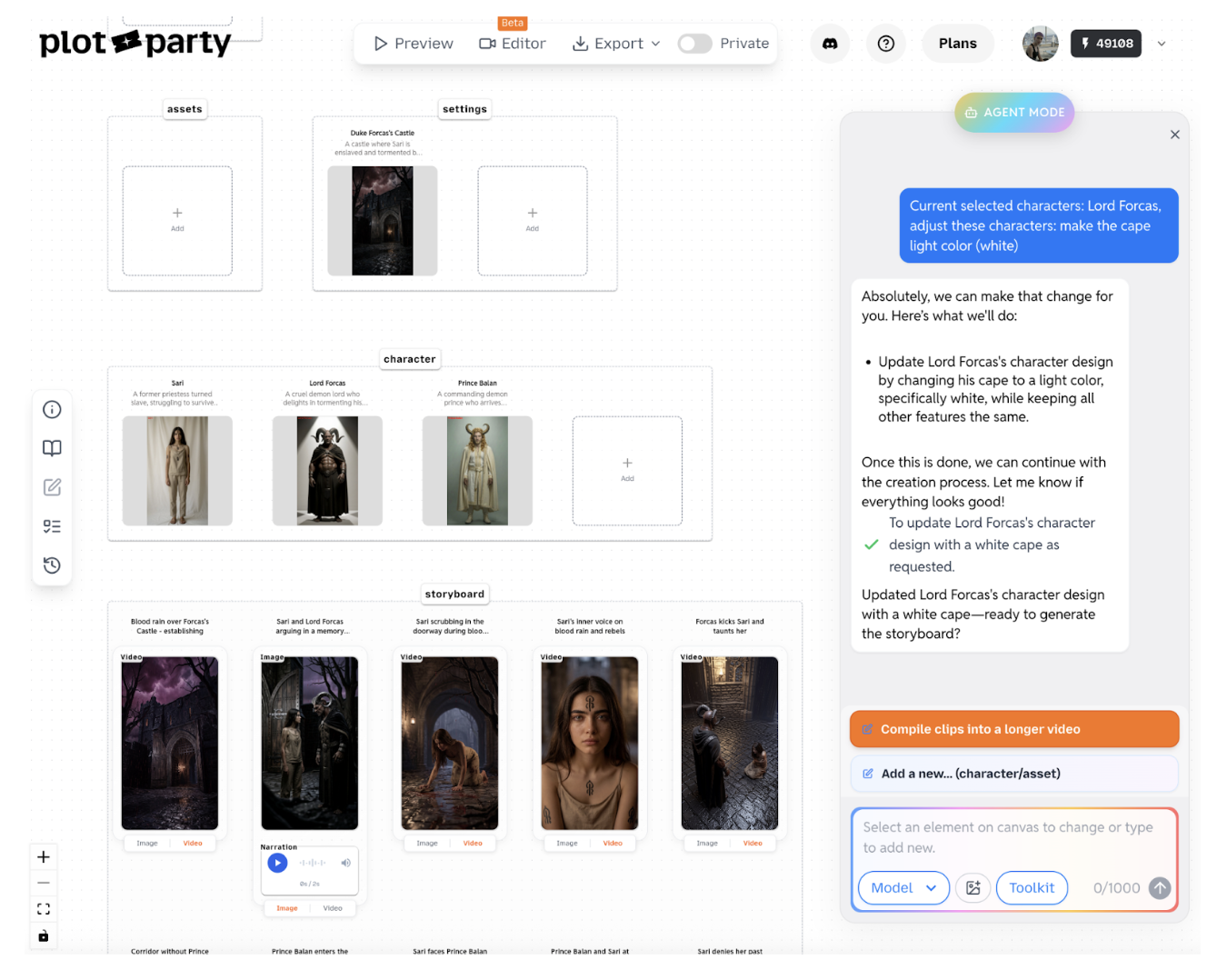
A skill is a production playbook. Bind one with / and the agent runs its stages, prompt templates, and style contract in that chat. The catalog you already know from the canvas is here: four-grid and nine-grid shorts, one-shot and multi-shot chains, realistic short drama, Kore-eda aesthetic, video recast, wardrobe showcase, photo montage, Pixar-style ad.
Studio adds a flagship of its own: Series Autopilot.
"Upload one long script (dozens of episodes are fine) and let the studio agent produce the WHOLE series hands-off. It reads the script by outline and asks ONE kickoff card right away — episodes, visual style, aspect ratio, video model + estimated credits — then runs in the background episode after episode — cast and location sheets, every clip, music, the merged film per episode — while you are away. It stops only when you stop it, when credits run out, or when one task fails 5 times in a row."
You answer one card, close the tab, and come back to a folder per episode with EP{N}_final.mp4 inside. Episodes can fan out into parallel lanes once the shared cast and locations are locked.
With no skill bound, the agent works in one of two modes. A targeted request (one image, one clip, one edit, one question) gets exactly that. A production request (make me an episode, a trailer, a short drama) runs the default pipeline: story, then base images for cast and locations and props, then clips generated directly from those base images, then soundtrack, then merged film. One decision card per stage gate. There is no storyboard stage in between, because base images plus a blocking sketch per shot carry the composition.
You can write your own skill without leaving the tree. Any markdown file named SKILL.md or *.skill.md is a skill definition. Its first heading is the name, its first paragraph is the description, and its body becomes the agent's workflow. Register it and it appears in your / menu as a private skill. Edit the file and it recompiles. No model in the loop, fully deterministic.
Two Layers of Memory
Long productions fail on forgetting. Studio keeps two notebooks, both in plain markdown you can read and edit.
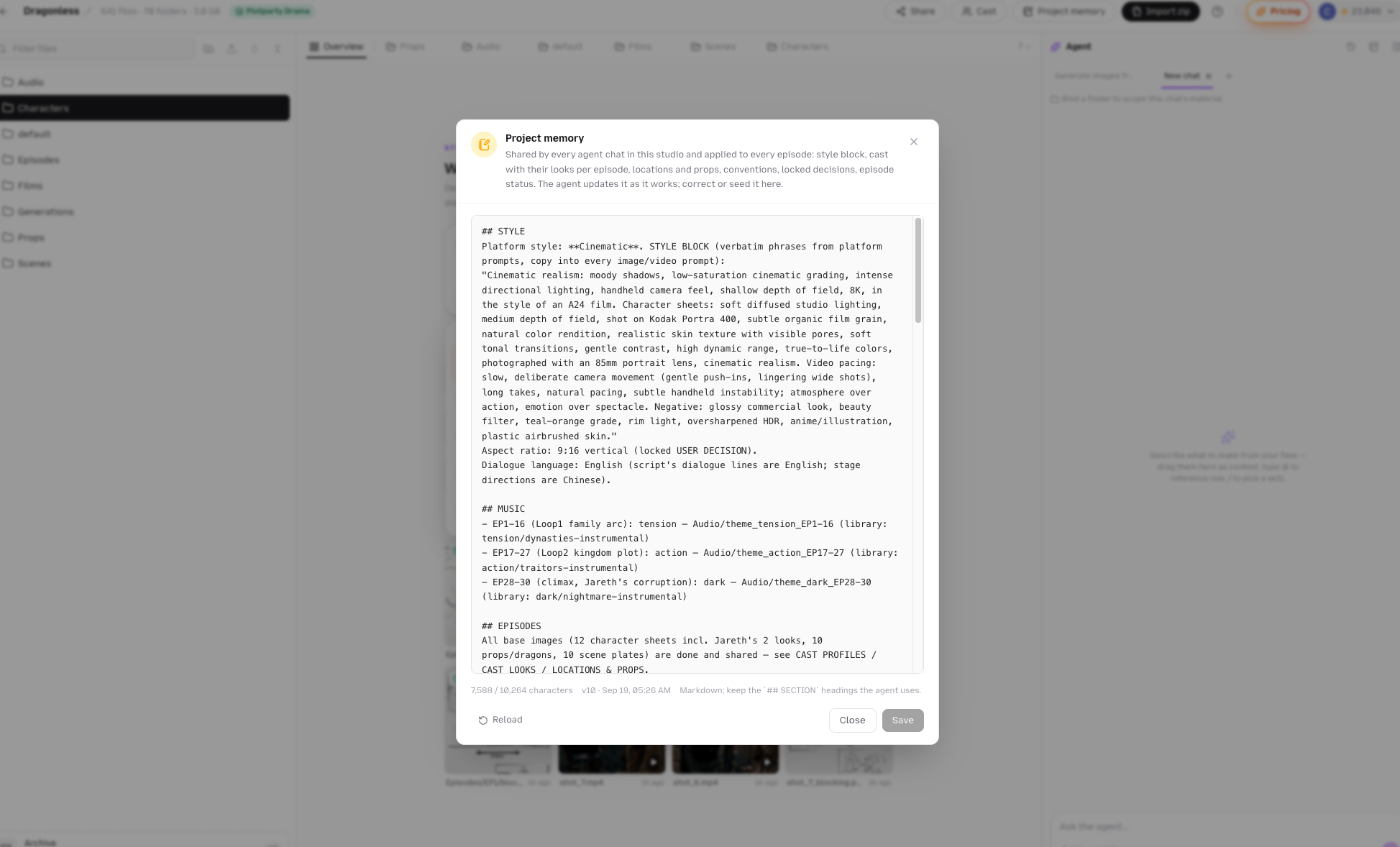
Project memory is shared by every chat in the Studio. Open it from the header button. It holds the style block, the cast with their looks per episode, locations and props, conventions, locked decisions, and per-episode status. The agent updates it as it works. You can correct it or seed it before the first message. The tour calls it "the notebook all agent chats in this studio share."
Chat memory belongs to one conversation: your requests in that window, progress, continuity notes, and the next step. Facts that hold for the whole project belong in project memory; the agent is told to keep them there.
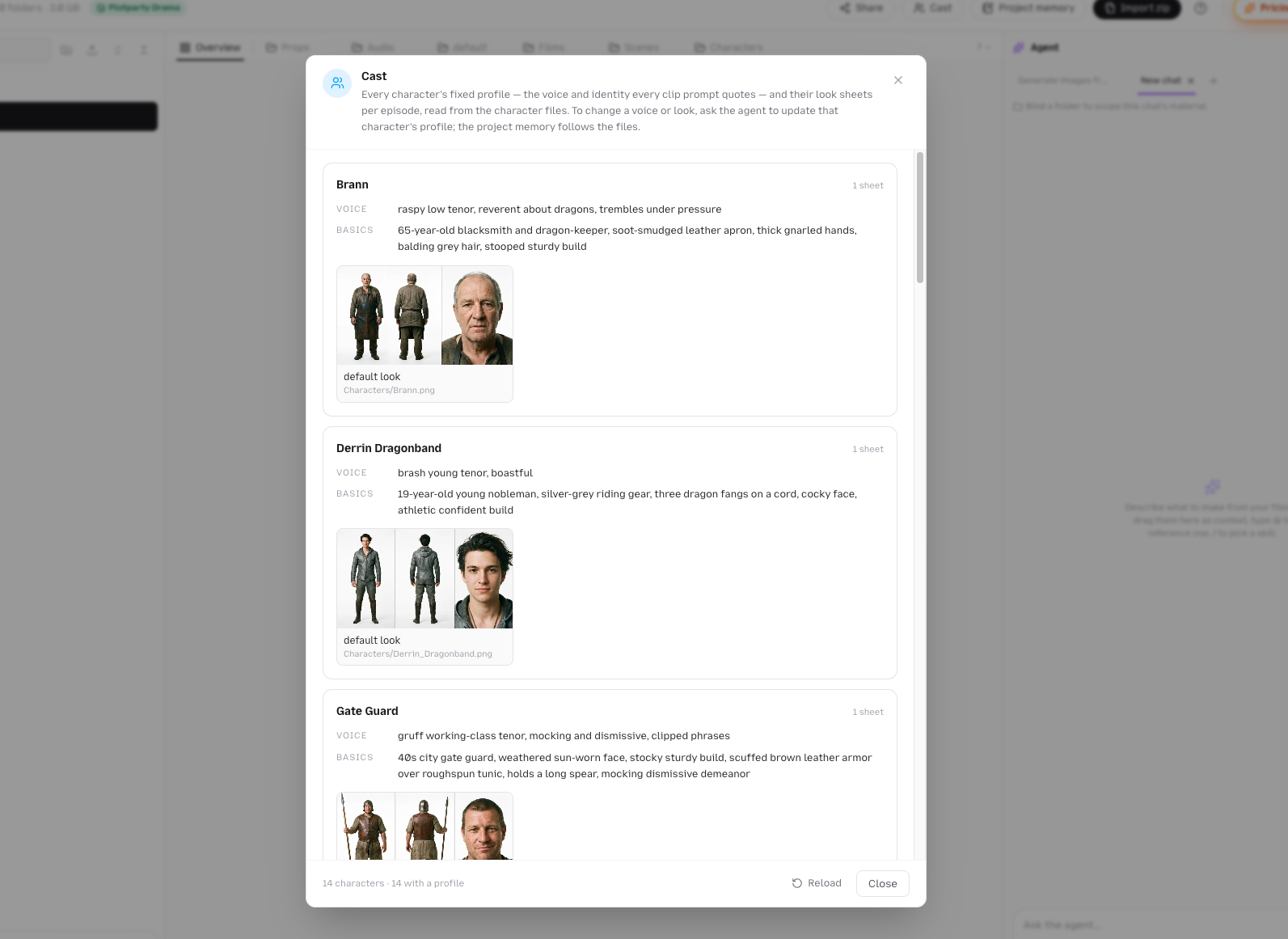
Cast is the read-only view of who is in your drama. Every character the agent knows, read straight off their files: identity basics, the voice every clip prompt quotes, and one look sheet per costume with the episode range it serves. A sheet named 李雷_西装_EP4- means Li Lei in a suit from episode four on. To change a voice or a look, you ask the agent to update the character's profile, and the project memory follows the files.
A Worked Example: A Two-Skater Short
The Studio in the screenshots is a small one: two characters, a shot list, and a handful of clips. Here is how a session like that runs.
1. Import the material. Drop two reference photos and a shot_list.md into a new Studio, or drop a zip. The agent's welcome card reads what arrived and offers four directions: make a video from these files, write a story first, generate images from them, or summarize what is here.
2. Lock the cast. Ask for character sheets. The agent generates skater_boy.png and skater_girl.png into Characters/, each with a profile. You open them as tabs, side by side, and ask for one change: "give her a looser hoodie." The old version goes to Archive. Cast now shows both.
3. Board the beats. Ask for a shot list from the script. It lands as shot_list.md. You edit two lines in the Script tool.
4. Approve the cost. Say "shoot it." The agent asks for resolution and aspect ratio, then sends the cost card: clips, seconds, resolution tier, total credits. You confirm.
5. Watch it file in. Clips land in Generations/ with a Generating... label, then flip to a thumbnail with a New badge. One fails and shows Failed in red, with the error on hover. You right-click it, choose Reuse setup, drop the reference the model missed, and regenerate next to the original.
6. Cut and score. Drag the finished clips onto Sequence to watch the order. Then ask the agent to merge, add music, and burn in subtitles. All three are free. The film lands in Films/.
Total credits went to the images and clips. Everything else, including the agent reading, writing, and filing, ran on the chat budget described below.

How Credits Work
Two meters run in Studio.
Chat turns are billed by tokens. Every model call inside a turn is summed, converted at 12,000 tokens per credit, rounded up, and deducted once the turn ends. A crashed or interrupted turn charges nothing. Inside a turn, the agent re-checks your balance before every call and stops when the next one could not be covered, so a runaway turn never runs far past your balance. If you run out mid-production, everything made so far is in the tree, and "continue" picks up where it stopped.
Generations are billed per task, at the same rates as the rest of Plot Party: per image, or per second of video times a resolution multiplier, with 720p as the base tier. The tools show an estimate before you press Generate. The agent shows the cost card before any video.
Free: merging clips, transcribing subtitles, burning subtitles in, picking library music, and every file operation, annotation, and memory update. Script Autoformat is 1 credit.
Who Studio Is For
Studio is not the fastest way to make one clip. The canvas and the quick Generate page are better for that. Studio is for work that has a cast, a script, and more than one episode:
- Serialized microdrama creators who need episode nine to star the same people as episode one, and who want to stop re-explaining the cast every session.
- Writers with a finished script who want to see it shot without directing every clip by hand. Series Autopilot exists for you.
- Small production teams who want the agent's output to arrive as files a human can open, edit, replace, and version, not as a chat scrollback.
- IP holders who need a project memory that pins down style, cast, and locked decisions across a long run.
Early Access
Studio is in early access. It appears as a Beta tab on the home creation panel and under Works for accounts that have it enabled. If you are making a drama of thirty minutes or more and want in, email [email protected] with a line about what you are producing.
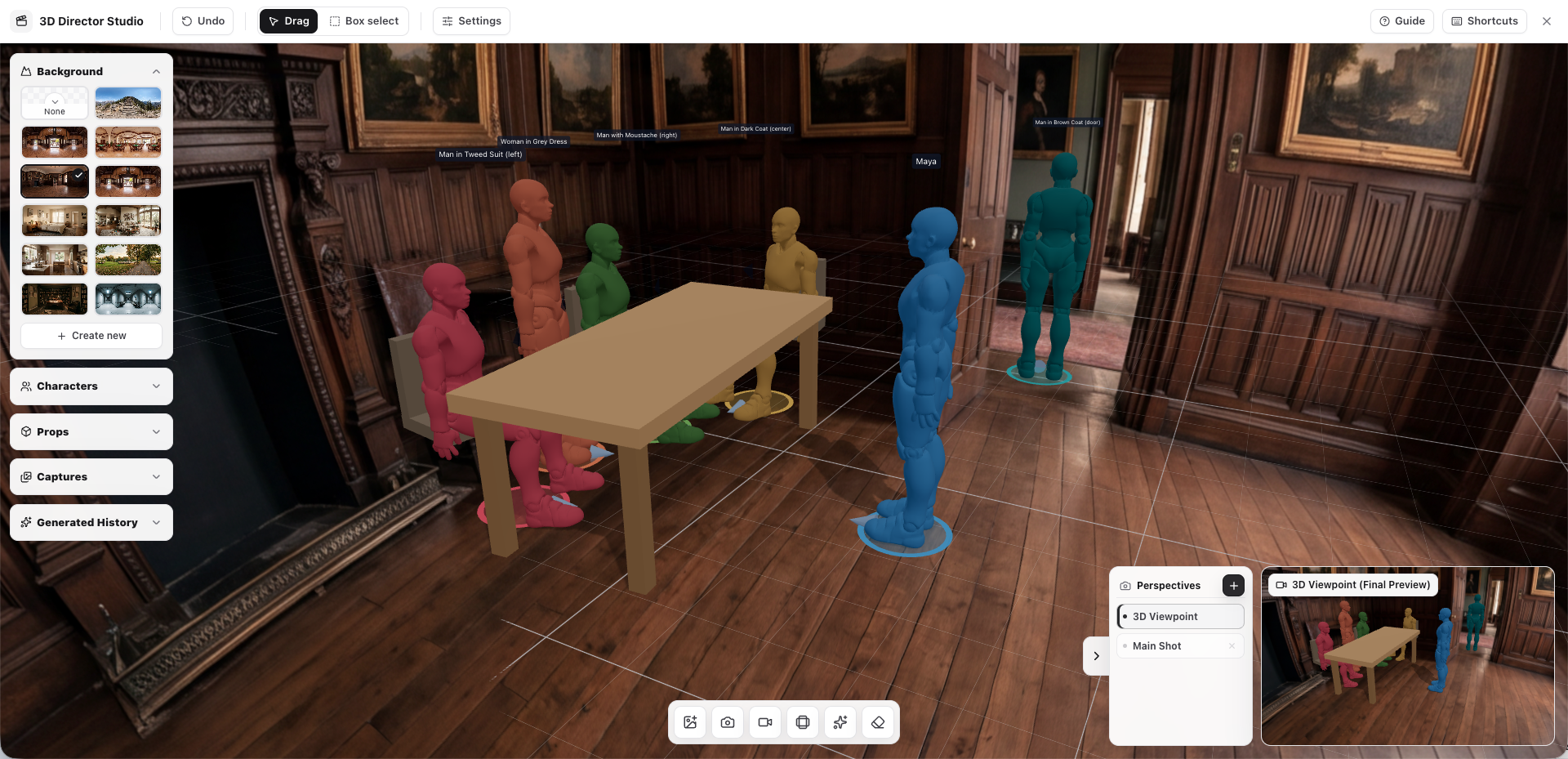
If you would rather learn the pieces first, our drama episode tutorial walks through cast, board, and shoot in the canvas, Director Studio covers blocking and camera control for a single shot, and the Plot Party MCP guide shows the same production tools driven from Claude or ChatGPT.
FAQ
What is Plot Party Studio?
An agent-native workbench for long-form AI drama. You brief an agent in plain language, and it writes scripts, generates character sheets, clips, music, and voice, merges films, and files every result into a tree of files you own and can edit.
How is Studio different from the Plot Party canvas?
The canvas is a visual board for one episode or one short. Studio is a project: a persistent file tree, multiple agent chats with shared project memory, folder-scoped work, and a hands-off mode for whole series. Studio is built for thirty minutes and up.
Can I do steps myself instead of asking the agent?
Yes. Six tools sit in the Overview: script editing, image, video, audio, depth motion capture, and sequence. Results file into the same tree, and any generated file can be reopened with its full setup and regenerated.
How does Studio keep characters consistent across episodes?
Characters live as files with a profile and one look sheet per costume and episode range. Consistency comes only from attaching those files as references, never from describing the character in the prompt. Project memory tracks who wears what in which episode.
Will the agent spend credits without asking?
Not on video. Every video generation is blocked until you answer a cost card stating clips, resolution, and total estimated credits. Chat turns are billed at 12,000 tokens per credit and the agent stops before your balance runs out.
What is Series Autopilot?
A skill that reads a long script by outline, asks one kickoff card, and then produces every episode in the background: cast and location sheets, every clip, music, and a merged film per episode. It stops when you stop it, when credits run out, or when a task fails five times in a row.
Can I write my own skill?
Yes. Save a markdown file named SKILL.md or *.skill.md anywhere in the tree, register it, and it appears in your / menu as a private skill. Edit the file to update it.
How do I get access?
Studio is in early access. Email [email protected] with what you plan to make.