
Every AI video tool hands you a frame. Filmmakers do not think in frames. They think in places.
A director walks a location before the shoot. A DP stands where the camera will stand. An AD knows the actor crosses from the stoop to the curb in four steps, so the taxi has to pull in on step three. That knowledge comes from being inside a space, and until now AI video has never given you a space. It has given you a prompt box and a lucky roll.
Snowglobe is our 3D world engine for filmmaking. One line or one image becomes a full 3D set you can step inside. Then you change it, direct it, and film it, and the shots go straight into generation.
The One-Line Version Permalink to “The One-Line Version”
Describe a place, or drop in a picture of one. Snowglobe builds the world around it: terrain, streets, buildings, trees, water, traffic, people. You walk through it like a set, not a still.
Then you:
- Change it. Time of day, weather, props, layout.
- Direct it. Block your actors, place your cameras.
- Film it. Send the shots straight into generation.
Every scene, every take, every angle lives in the same world, so the street your hero walks down in shot one is the same street in shot twelve.
Shake a Sentence Into a Snowglobe Permalink to “Shake a Sentence Into a Snowglobe”
Snowglobe opens on a single prompt box: Shake a sentence into a snowglobe. Describe a place, or drop in a photo, and in a few minutes it lives in a glass globe, ready to walk into and film.
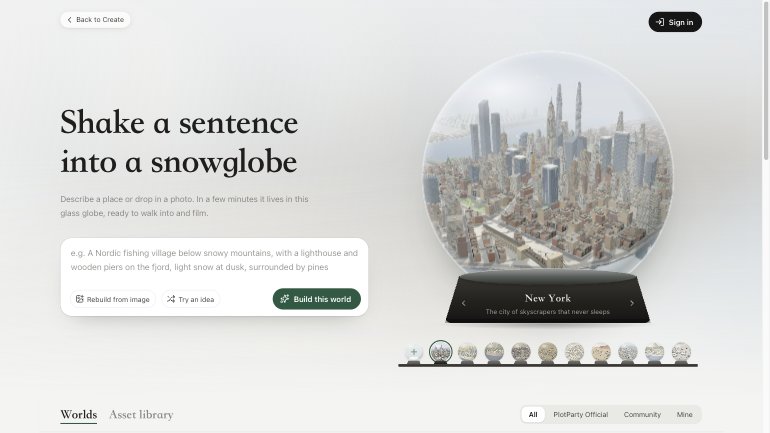
A good prompt reads like a location note, not a keyword list. The placeholder gives you the idea: a Nordic fishing village below snowy mountains, with a lighthouse and wooden piers on the fjord, light snow at dusk, surrounded by pines. Stuck for a place? Try an idea gives you one.
Or Rebuild From One Image Permalink to “Or Rebuild From One Image”
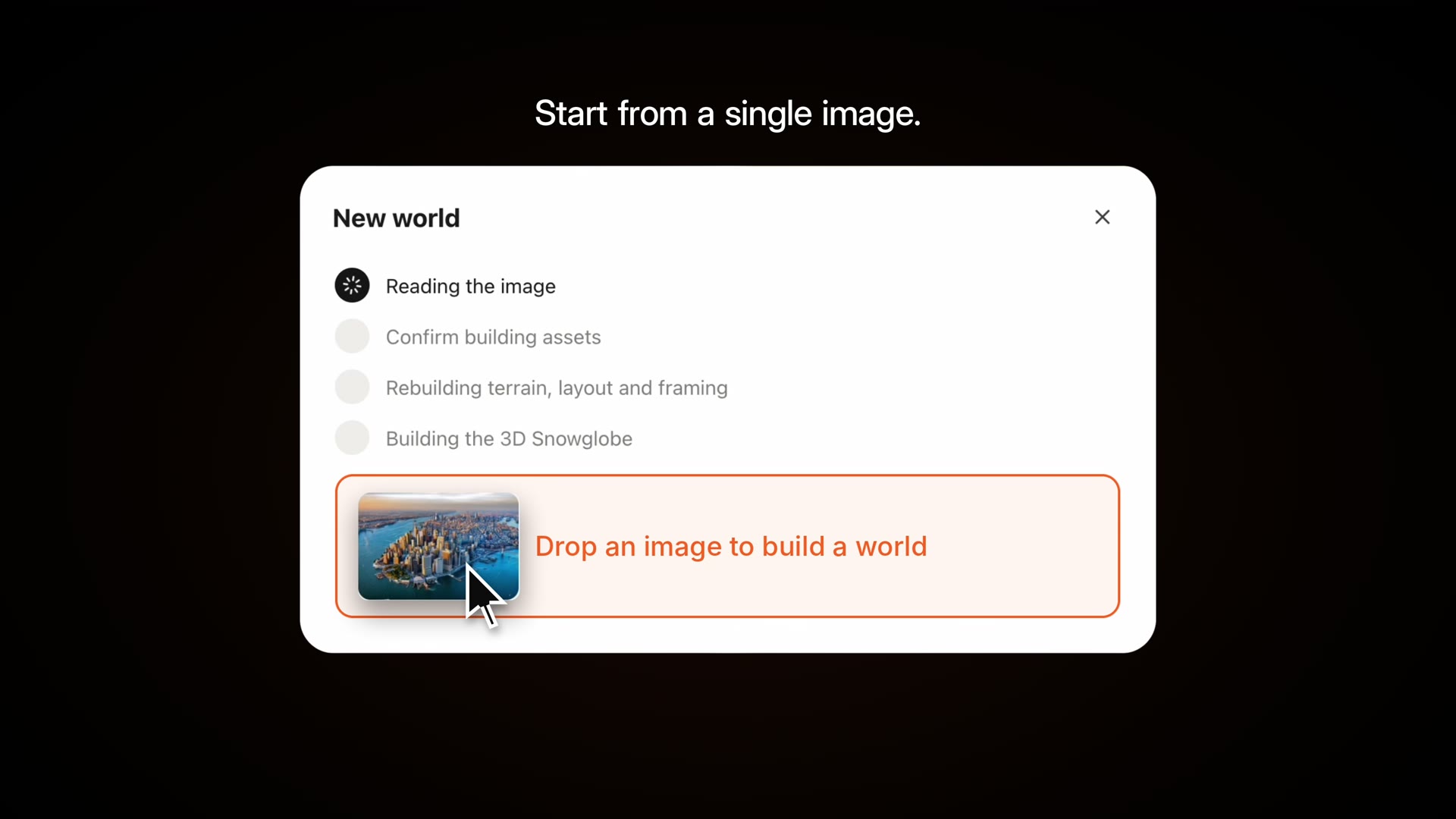
Choose Rebuild from image and drop in a reference: a skyline from above, a western town, a photo from your own scout. Snowglobe works through four visible steps:
- Reading the image. It picks out terrain, building clusters, and framing.
- Confirm building assets. You see which structures it found before anything is built.
- Rebuilding terrain, layout and framing. The ground, the roads, and the camera angle of your source are reconstructed in 3D.
- Building the 3D Snowglobe. The finished world opens, ready to explore.
When Snowglobe builds a world, it looks in your own asset library first, then in the built-in library of nearly 500 assets (buildings, objects, vehicles, plants, characters, animals), and only models something new when neither has it. A palace or a Japanese machiya shophouse you used last week is ready for the next world.
Or Start From a Ready-Made World Permalink to “Or Start From a Ready-Made World”
You do not have to build anything to try it. The Worlds gallery holds ready-made sets from the Plot Party team: New York, Sunshine Coast City, Mistmere Academy (a castle school by a snowy mountain lake), Wizards' Row, Frontier Junction, Ancient Rome, Cowboy Town, Amsterdam, a Japanese Seaside Town, a gold-rush Western Town, and a Nordic Harbor Town. Each one has its own terrain, water, and story: Times Square glowing all night, a train easing into a frontier depot, barges on the Tiber.
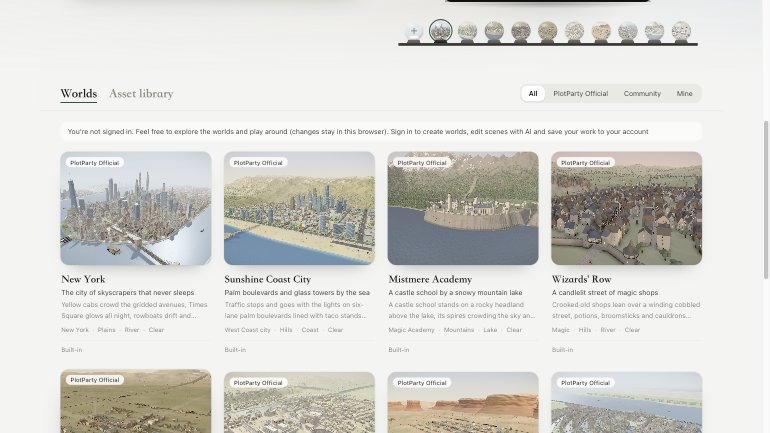
You can explore any of them and play around without signing in. Your changes stay in that browser. Sign in to build your own worlds, edit scenes with AI, and save your work.
A Full 3D Set You Can Step Inside Permalink to “A Full 3D Set You Can Step Inside”
What you get is not a backdrop. It is a place with depth, scale, and real dimensions.
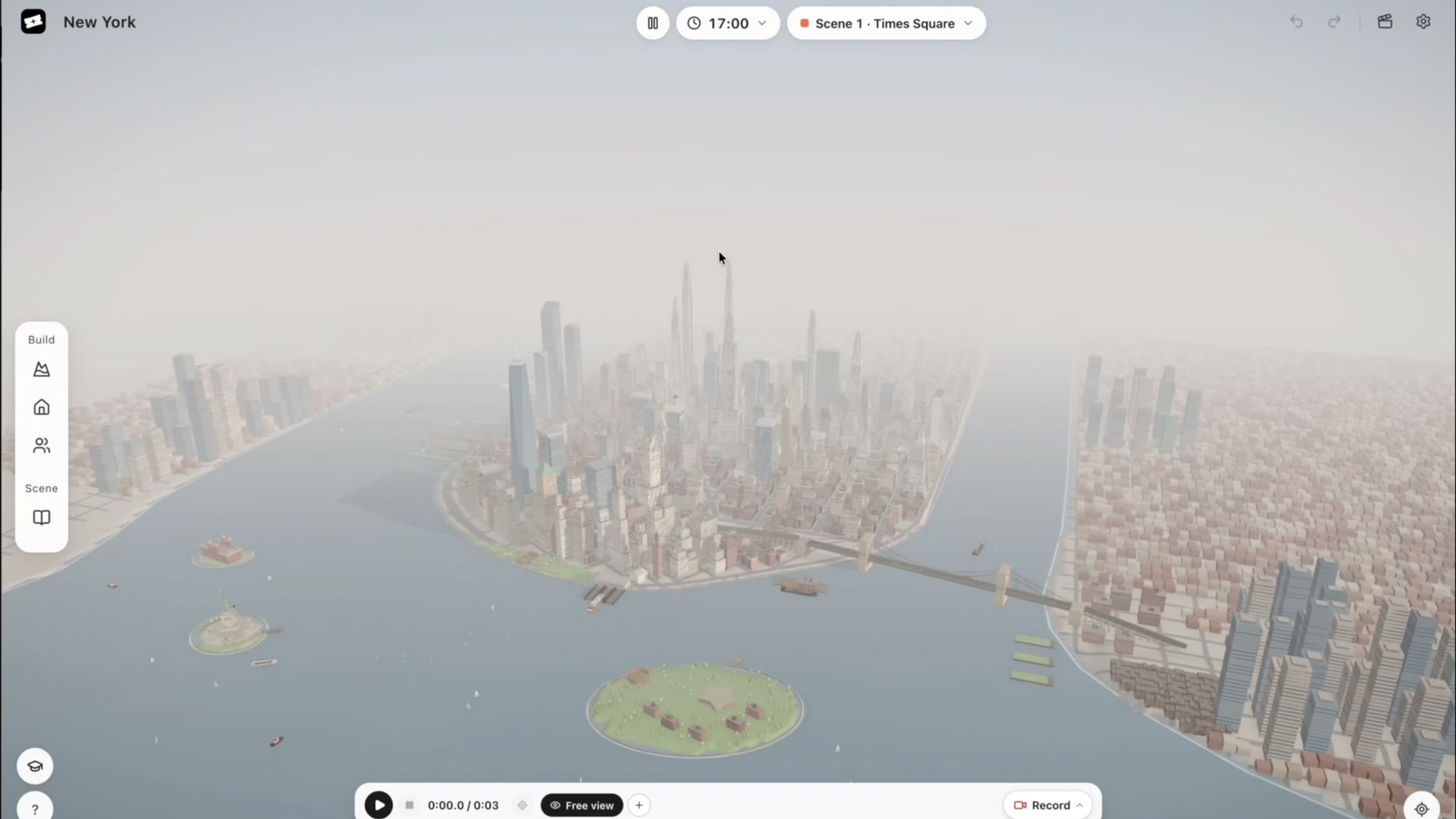
In the New York world, you can fly down an avenue lined with brownstones and a park, see cars moving in the lanes and pedestrians on the sidewalk, and mark out a Scene: a region of the world you are shooting in. Each scene has a name, a subtitle for what happens there ("father and son fall out"), an indoor or outdoor setting, and its own Takes and Screenshots. Redraw the area any time the scene moves.
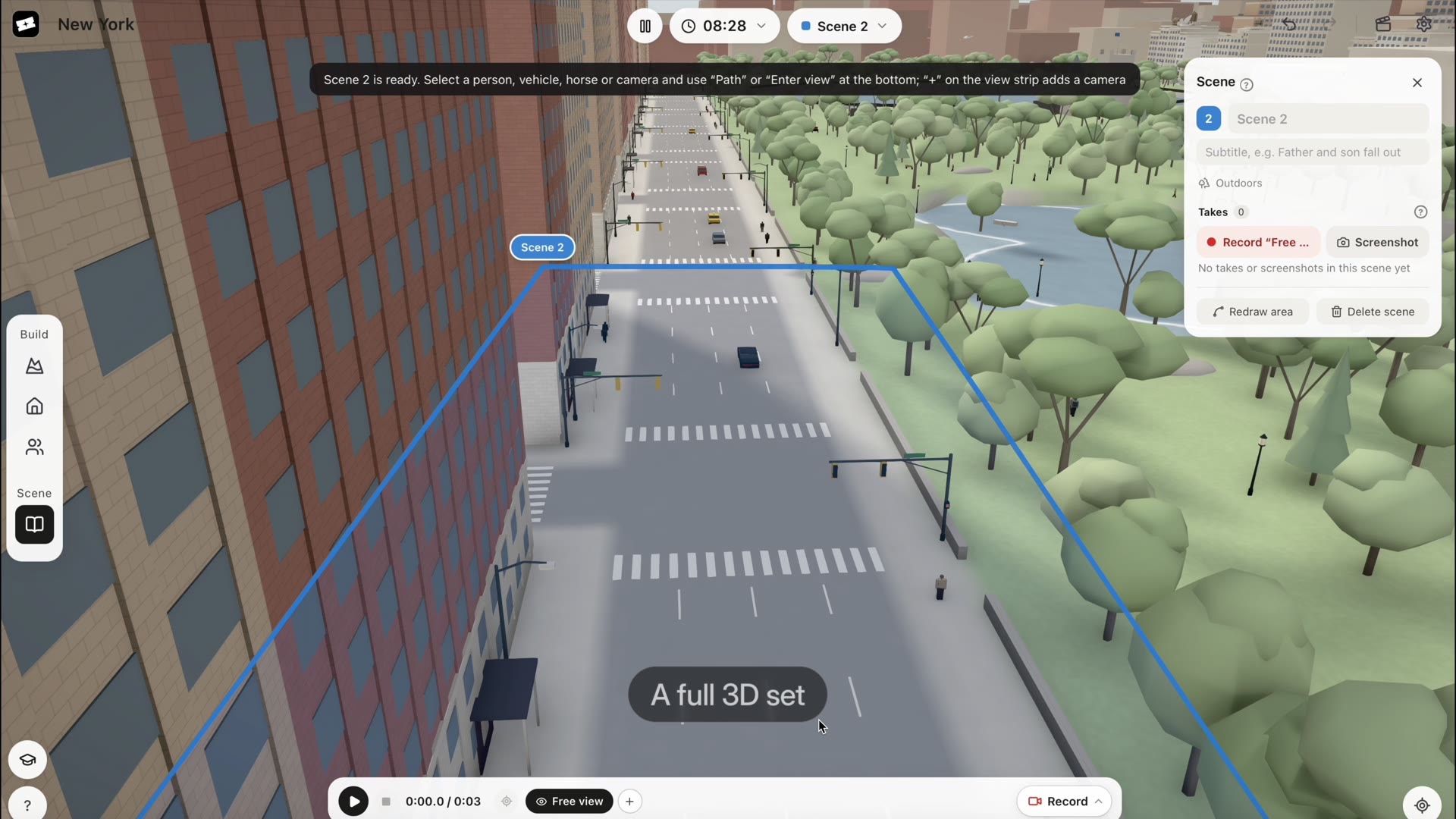
The layout stays the same in every world. The left rail holds Build (terrain and weather, buildings, characters) and Scene. The top bar holds the world clock and a scene switcher. The bottom bar holds playback, the current view, a + to add a camera, and Record.
Change It: Time, Weather, Terrain, Layout Permalink to “Change It: Time, Weather, Terrain, Layout”
The world is editable down to the building.
Time of day. Open the clock and drag the World Time slider across 24 hours, or jump to Dawn, Morning, Noon, Afternoon, Dusk, or Night. Turn on Time flow and the sun keeps moving while you work. Windows light up after dark.
Weather. Clear, Cloudy, Foggy, Rain, Snow, or Dust storm, one click each.

Above is one set, Mistmere Academy, three ways: morning, night, and snow. Nothing else changed. The castle, the cloister, and the scene boundary stayed exactly where they were.
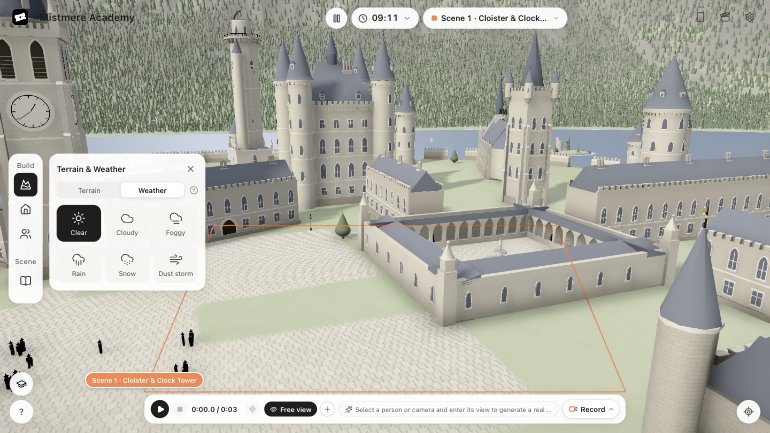
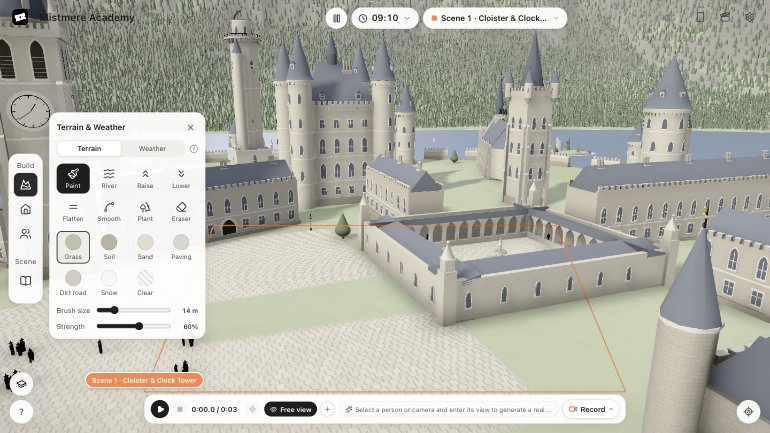
Terrain. The Terrain tab is a brush. Paint the ground with grass, soil, sand, paving, dirt road, or snow. Cut a river. Raise, lower, flatten, or smooth the land. Plant trees. Set the brush size and strength, and erase what you do not want.
Buildings and props. Click a building and you get its footprint, height, story count, interior size, and room count. Move it, rotate it, delete it. If it is marked Can go inside, press Go inside and Snowglobe opens the interior, so a scene can cut from the street to the hallway without changing worlds.
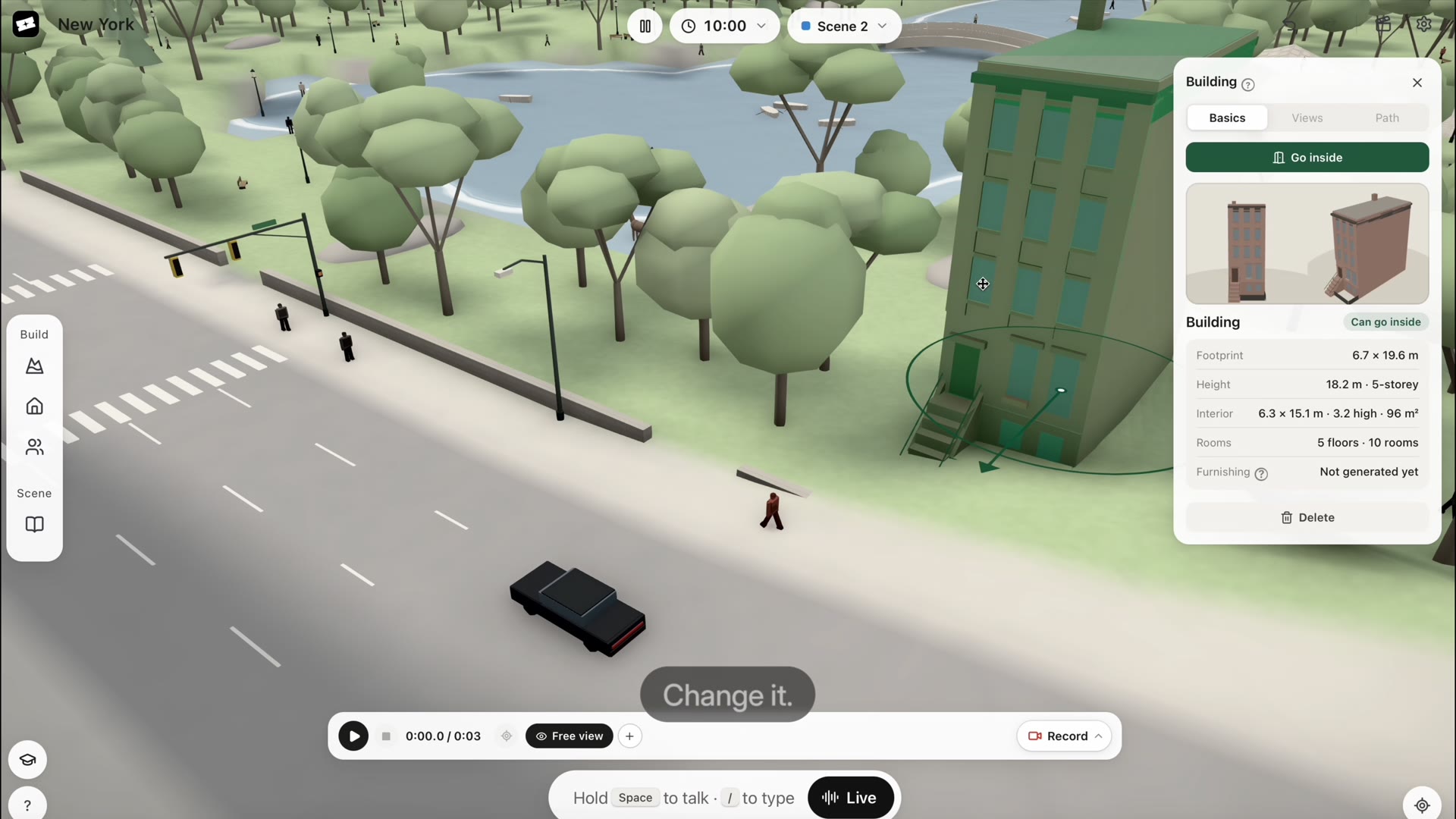
You do not have to click for all of it. Hold Space to talk, or press / to type, and tell Snowglobe what you want: "make it dusk," or "add a taxi at the curb."
Direct It: Block Your Actors, Place Your Cameras Permalink to “Direct It: Block Your Actors, Place Your Cameras”
A set is only half of previs. The other half is who moves where, and where the camera sees it from.
Cast. Click anyone in the scene and their profile opens: name, role, gender, age, traits, a short bio, walking speed, and a marker color so you can tell your leads apart from the extras at a glance. Upload a portrait to give the character a face of their own, or add a new character from the Characters panel.
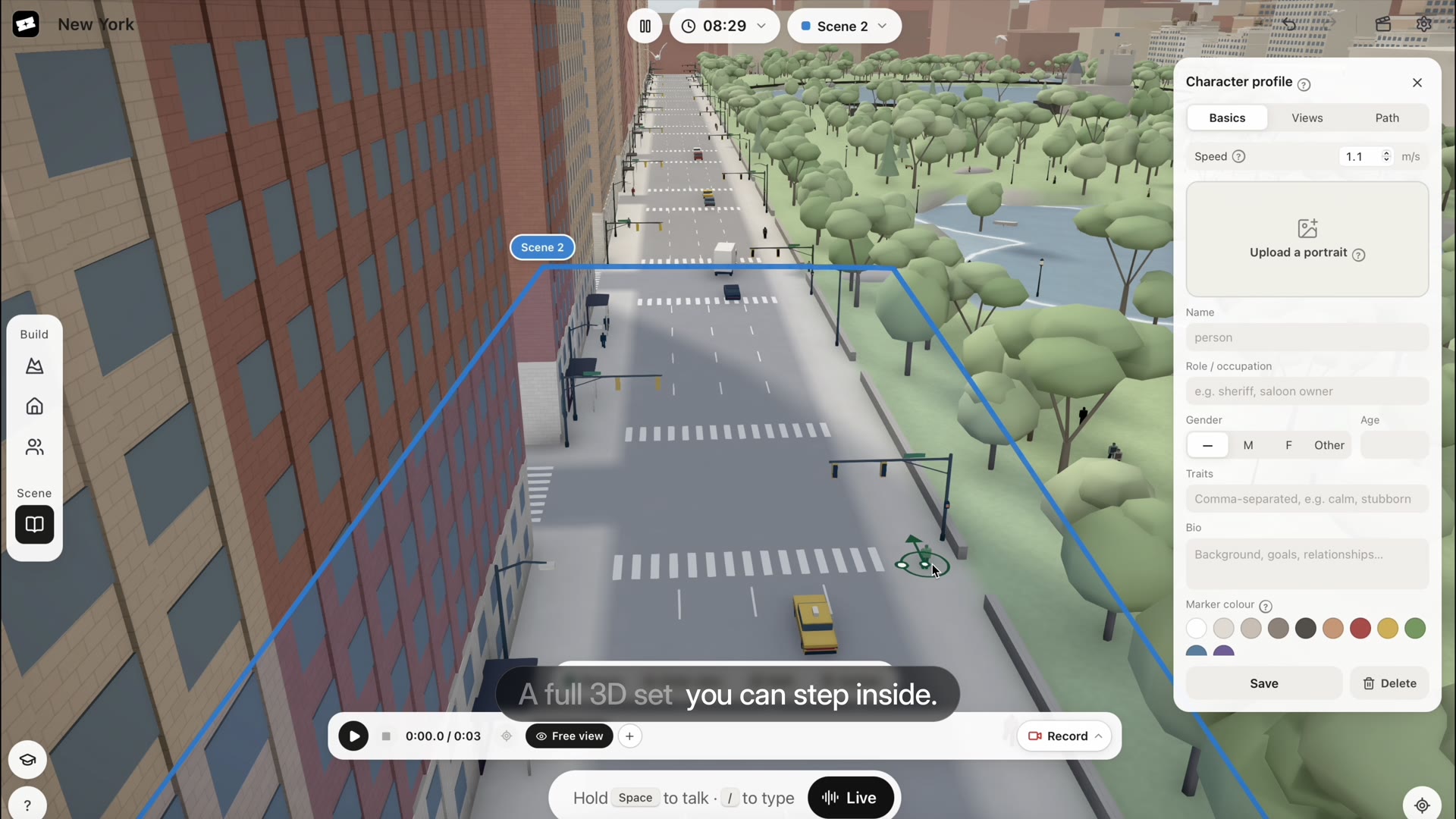
Blocking. Select a person, vehicle, horse, or camera and press Path. Click to lay down legs of movement on the ground. Undo a point, finish, and press play. The actor walks the sidewalk at their speed, the taxi pulls in on its own path, and you watch the timing land before anyone has rendered a frame. Press stop and everything returns to where it was, with time back at the start.
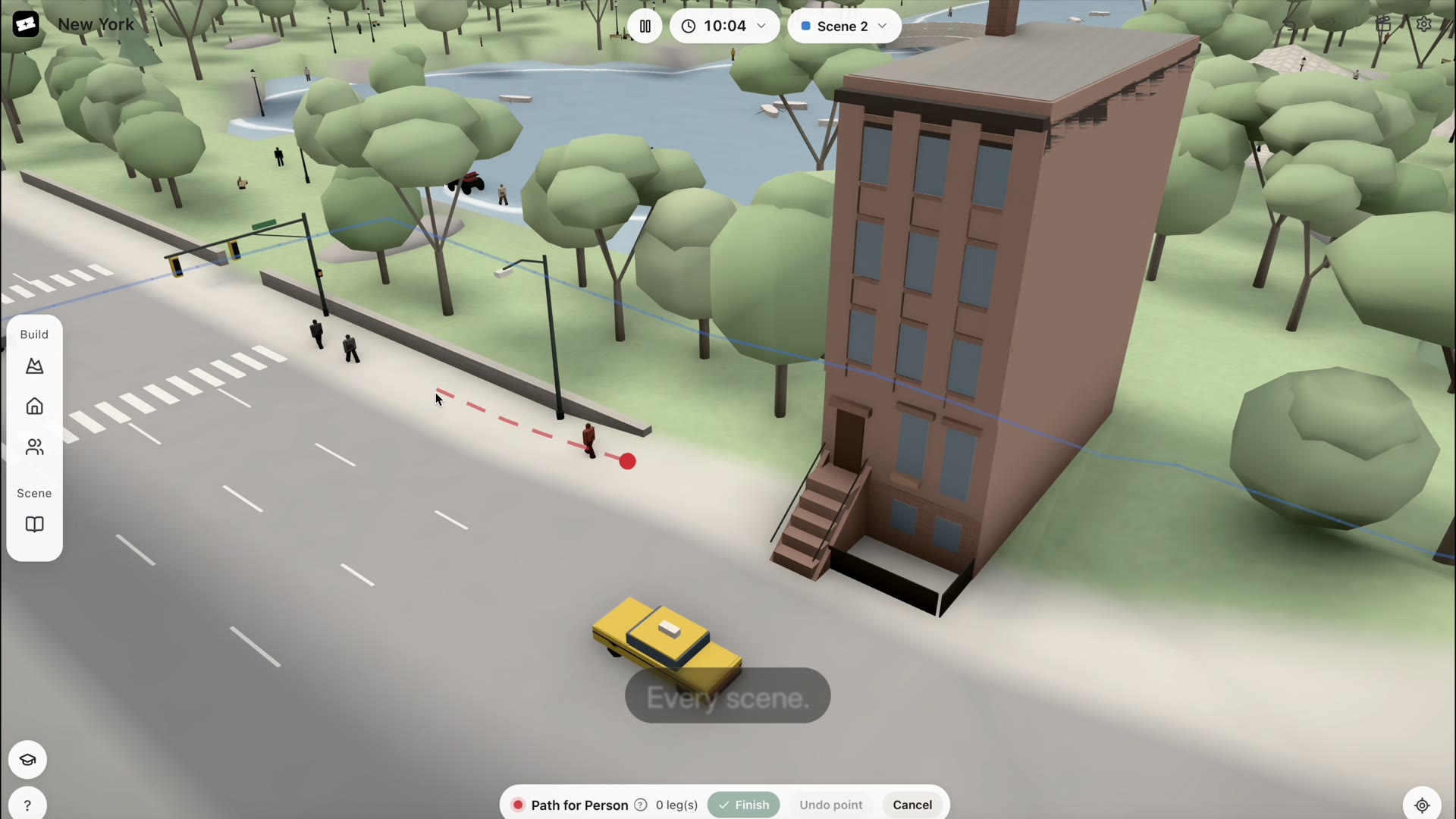
Cameras. Press + on the view strip and Snowglobe places a new camera mid-screen. It becomes a new view of the scene. Use Enter view to look through any camera, or through any character's eyes, and Free view to fly back out. Each camera is a shot you can come back to. Every scene, every take, every angle.
Film It: Send the Shots Straight Into Generation Permalink to “Film It: Send the Shots Straight Into Generation”
When the blocking reads right, pick a person or a camera, enter its view, and press Record, or take a Screenshot of a frame you love. Snowglobe sends the take to the Plot Party Canvas, where it becomes a finished, lit, photoreal shot with the composition, the camera, and the actor's position you chose, not the ones a model guessed at.
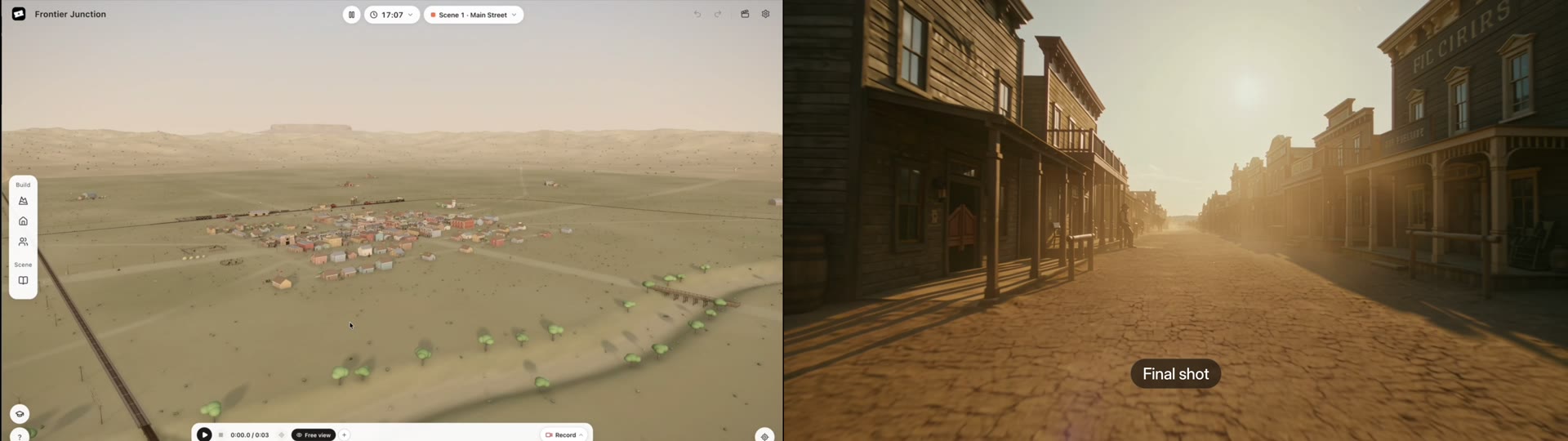
Above, on the left, is Frontier Junction, a railroad town built in Snowglobe, seen from Free view. On the right is the final shot from Main Street at golden hour. Same town, same street, same light direction. Shoot the next angle and it will still be the same town.
New to it? The first time you open a world, a short tutorial called Shoot your first video walks you through it in four steps: get someone walking, pick a view, record it, and send it to Canvas. It takes about two minutes, and the graduation-cap button at the bottom left replays it any time.
Two Ways to Use It Permalink to “Two Ways to Use It”
Hybrid Previs Permalink to “Hybrid Previs”
Scout and block a set before a live-action shoot, so your crew walks in knowing every angle.
Build the location from a reference photo or a scout picture. Match the time of day and weather to your call sheet. Block the actors and the cars, place every camera you plan to use, and record a rough take of each setup. Your DP, your AD, and your actors see the same thing before the trucks arrive: where the sun is, where the camera is, how long the cross takes. The day on set is spent shooting, not figuring it out.
Full AI Filmmaking Permalink to “Full AI Filmmaking”
Go from one sentence to a finished scene inside one world.
Describe the place, let Snowglobe build it, cast and block your characters, place your cameras, and send the shots to generation. Because every shot is filmed inside the same world, continuity comes for free: the building on the corner does not change shape between cuts, the light does not jump, and the street layout holds from the wide to the close-up. That is the problem most AI films still fight with, and here the set solves it, not luck.
Who Snowglobe Is For Permalink to “Who Snowglobe Is For”
- Directors and DPs who want to scout, block, and shot-list a location before committing a crew to it.
- AI filmmakers who are tired of re-rolling a scene until the background roughly matches the last shot.
- Microdrama and series creators who return to the same street, office, or apartment every episode and need it to stay the same place.
- Storyboard and previs artists who want a space to stage in, not a stack of frames to redraw.
Your Imagination Is the Sketch. Snowglobe Is the Set. Permalink to “Your Imagination Is the Sketch. Snowglobe Is the Set.”
Snowglobe lives inside Plot Party, next to the Canvas, Director Studio for single-shot camera control, and Plot Party Studio for long-form drama. Build the world in Snowglobe, then take the shots wherever the story goes next.
FAQ Permalink to “FAQ”
What is Plot Party Snowglobe? Permalink to “What is Plot Party Snowglobe?”
Snowglobe is a 3D world engine for filmmaking. It turns one line of text or one image into a full 3D set you can step inside, edit, block actors and cameras in, and film, sending each shot straight into AI video generation.
Can I build a world from a photo? Permalink to “Can I build a world from a photo?”
Yes. Choose Rebuild from image and drop in a picture. Snowglobe reads the image, confirms the buildings it found, rebuilds the terrain, layout, and framing, and opens the result as a 3D world.
Can I try it without an account? Permalink to “Can I try it without an account?”
Yes. You can open any ready-made world, such as New York, Mistmere Academy, or Frontier Junction, and play around without signing in. Changes stay in your browser. Sign in to create your own worlds, edit scenes with AI, and save your work.
What can I change inside a world? Permalink to “What can I change inside a world?”
Time of day (with presets from Dawn to Night and an optional time flow), weather (Clear, Cloudy, Foggy, Rain, Snow, Dust storm), terrain (paint, rivers, raise, lower, flatten, smooth, plant), and buildings, which you can move, rotate, delete, or step inside. You can also ask for changes by voice or by typing.
How do I block actors and cameras? Permalink to “How do I block actors and cameras?”
Select a person, vehicle, horse, or camera and draw a path for it, then play the scene to check timing. Add cameras with the + on the view strip, and look through any camera or character with Enter view.
How do shots get turned into video? Permalink to “How do shots get turned into video?”
Enter a person's or camera's view, record a take or capture a screenshot, and send it to the Plot Party Canvas for generation. The final shot keeps the camera position, composition, and blocking you set up in the 3D world.
Is Snowglobe for live-action or AI films? Permalink to “Is Snowglobe for live-action or AI films?”
Both. Use it as hybrid previs to scout and block a set before a live-action shoot, or as a full AI filmmaking pipeline from one sentence to a finished scene inside one world.
Run Top AI Video & Image Models in Plot Party Studio
- Seedance 2.5 — Multi-reference AI video generation
- Kling 4.0 — 30-second keyframe-controlled AI video
- Gemini Omni Flash — Six-reference multi-subject video
- MiniMax H3 (Hailuo 03) — Reference-to-video and dialogue workflows
- SeedVR 2 — AI video upscaling and detail restoration
- Nano Banana 2 — Image generation and reference consistency
- GPT Image 2.5 — Image editing and character sheets
- Midjourney — Cinematic key art and world building
- Grok Imagine — Bold concept art and character moods
- Compare all Plot Party models