What You'll Create
Each story on Plot Party is a 1-2 minute narrative — a bite-sized drama episode powered by AI. You write the script, direct the visuals, and Plot Party's agentic canvas handles the heavy lifting: character design, scene generation, and video production.
Story mode is not a one-click tool. It's an agentic canvas — Plot Party gets you 80% of the way there, and you iterate on the remaining 20% to make it yours. The agent guides you through every step, but you're the director.
Watch the episode walkthrough on YouTube, or follow the complete written steps below. Open Generate for individual shots or Canvas for the episode workflow.
Before You Start
A few things to keep in mind:
- Keep it short. If your storyline is too long, break it down into bite-sized episodes first. A single story should fit comfortably in 1-2 minutes.
- Too short? If your idea is only ~15 seconds of content, skip story mode entirely. Go to plotparty.ai/generate and create individual generations directly.
- Review as you go. The agent will pause at key moments (script, characters, storyboard) to ask for your approval. Check the output before continuing — this avoids spending credits on shots you don't like.
Step 1: Set Up Your Story
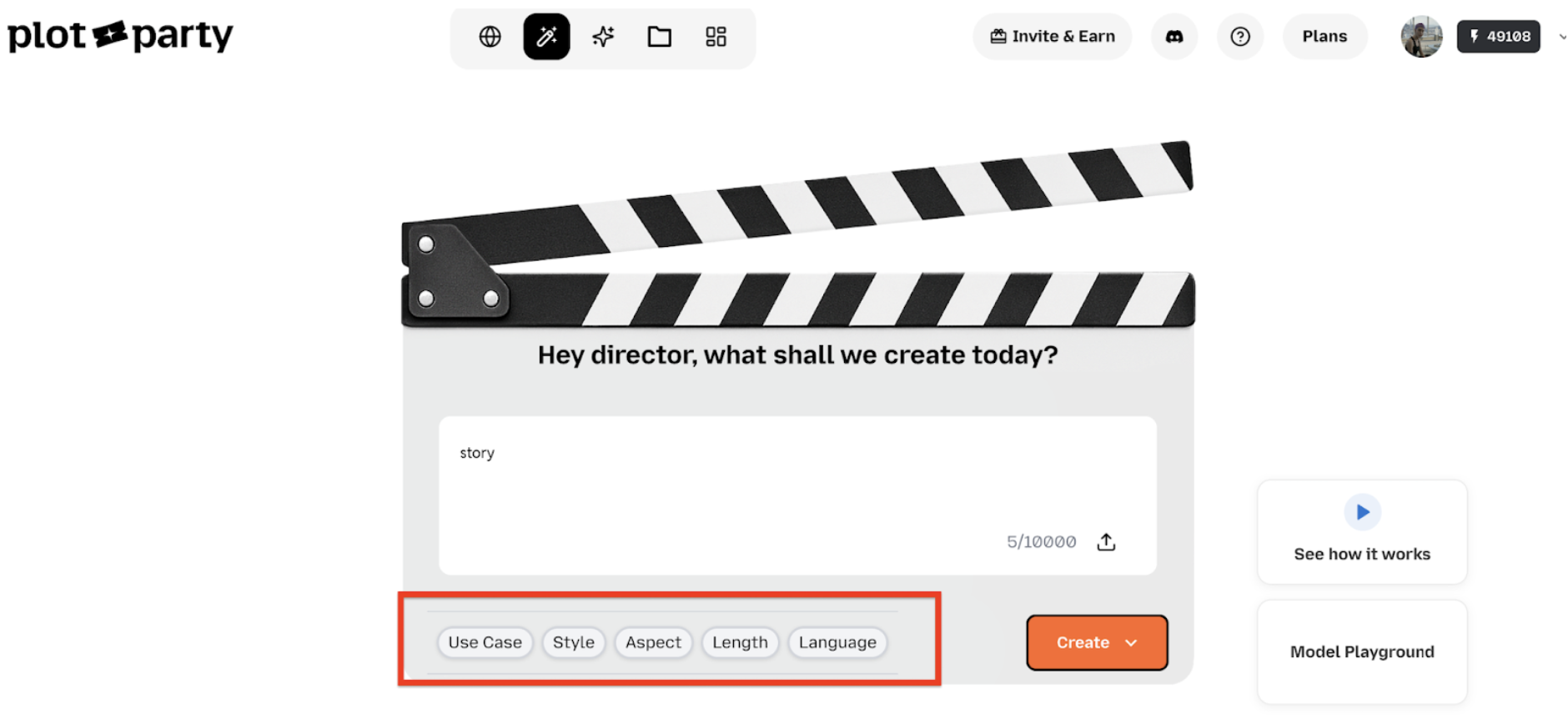
Head to plotparty.ai/home to create a new story. You'll configure three important settings:
| Setting | What It Controls |
|---|---|
| Use case | The type of content you're creating |
| Style | Visual aesthetic of your generated scenes |
| Aspect ratio | Portrait, landscape, or square framing |
Choose these carefully — they affect every generation in your story.
Step 2: Write Your Prompt
In the prompt box, enter either a storyline (a loose narrative description) or an actual script (with dialogue and scene directions). The more specific you are, the better the output.
Make sure the story is feasible for a 1-2 minute runtime. A good rule of thumb: 5-8 scenes, each about 10-15 seconds.
You'll also choose a generation mode:
| Mode | Cost | Best For |
|---|---|---|
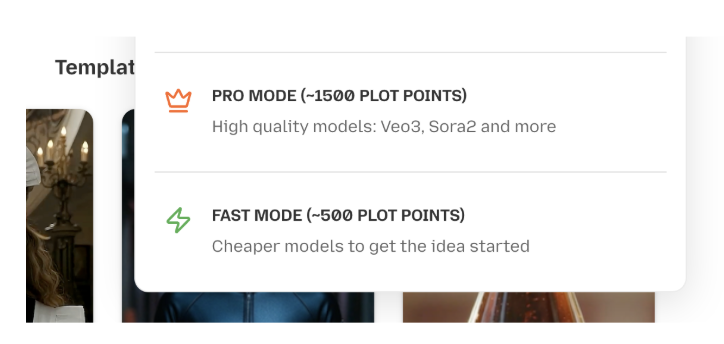
| Fast mode | ~$10 credits per 1 min video | Prototyping, narrated videos, quick iterations |
| Pro mode | ~$30 credits per 1 min video | Finished dramas, best models (Kling V3, Veo 3.1, etc.) |
Tip: Start with Fast mode to nail your story structure, then re-generate key scenes in Pro mode for the final cut. This saves credits while keeping quality high.
Credit estimates account for 10-20 regenerations per video, so you have room to iterate.
Step 3: Work with the Agent on the Canvas
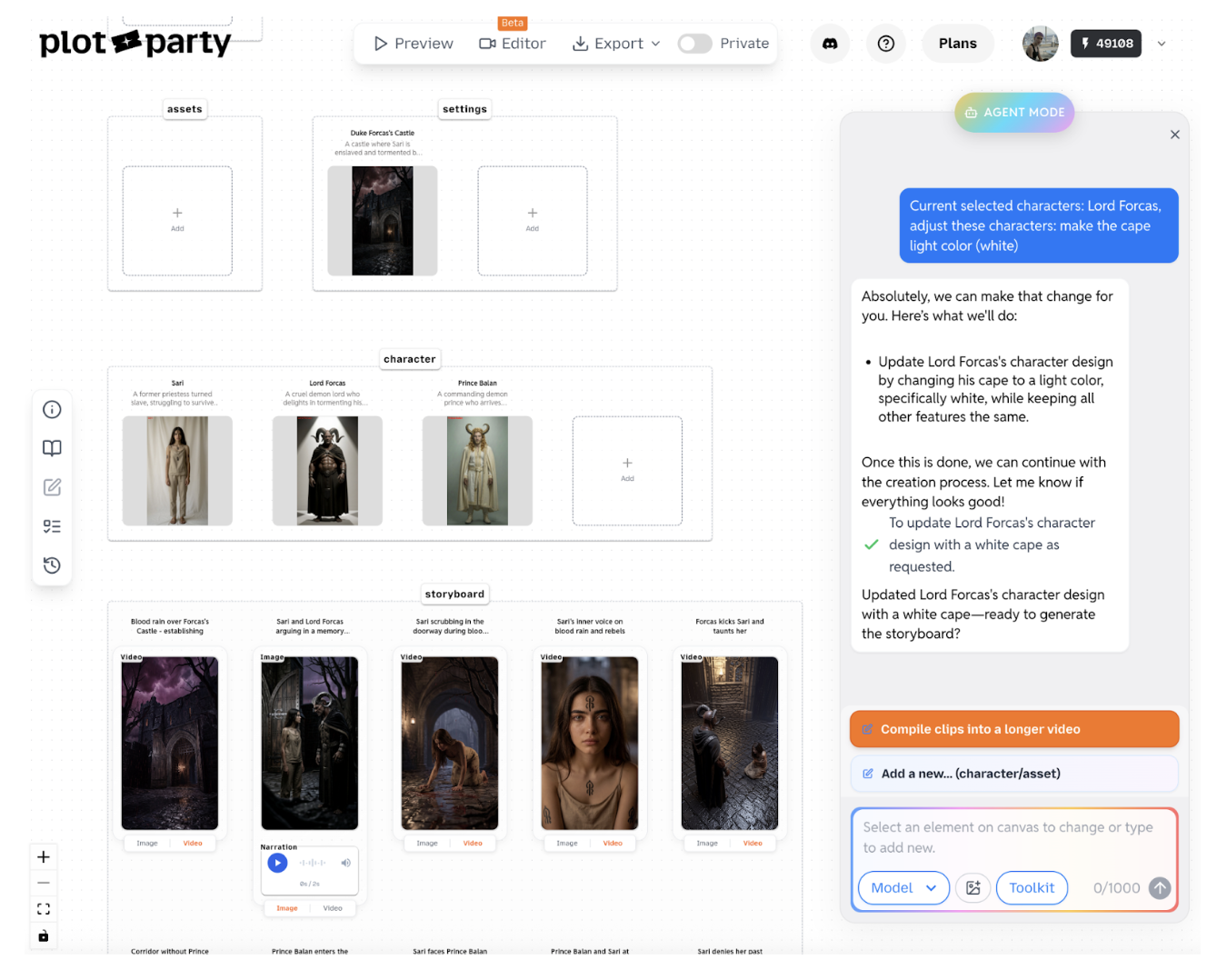
Once you're inside the canvas, the agent takes over and guides you through generation. It will stop at key checkpoints to ask you to review:
- Script — Does the scene-by-scene breakdown match your vision?
- Characters — Are the character designs consistent and what you imagined?
- Storyboard — Do the generated scenes capture the right mood and composition?
Review at each checkpoint. Making changes early (at the script or character stage) is far cheaper than re-generating videos later.
Step 4: Edit and Iterate
This is where you direct. To make changes to any element, you have two options:
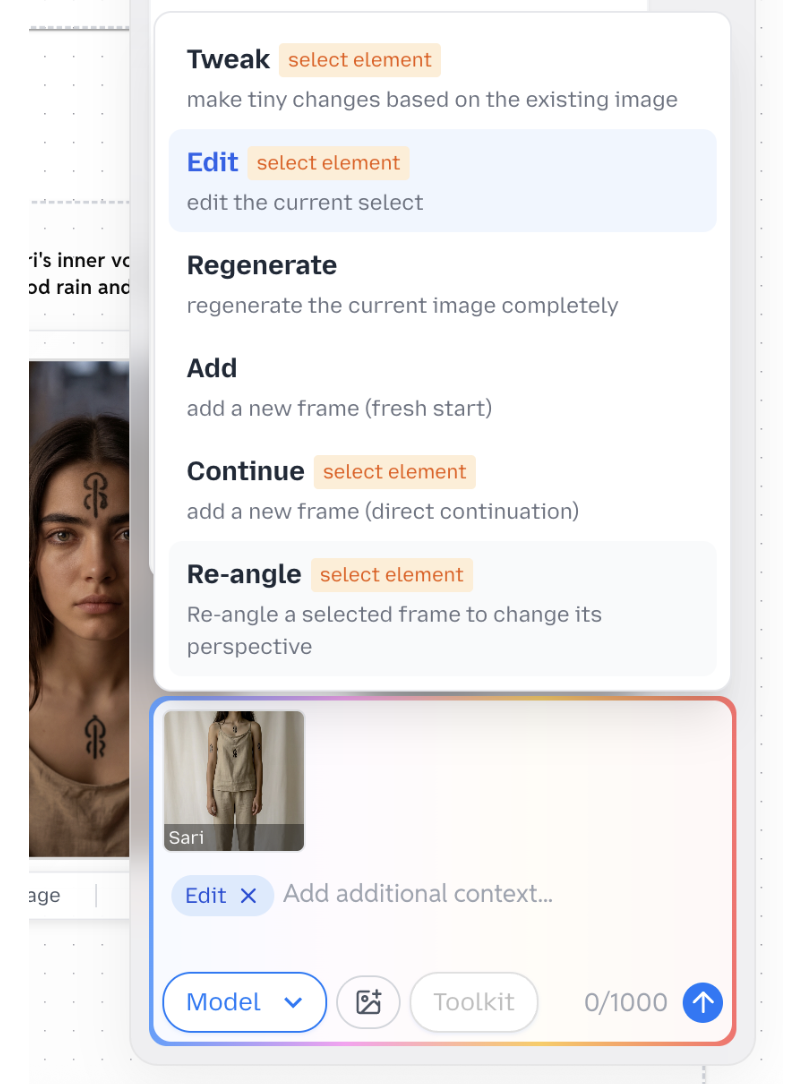
Option A — Use the chatbox: Click on an element, then choose a tool in the chatbox:
- K — for simple tweaks and adjustments
- Reangle — to change camera angles on a scene
- Regenerate — to fully re-run a generation from scratch
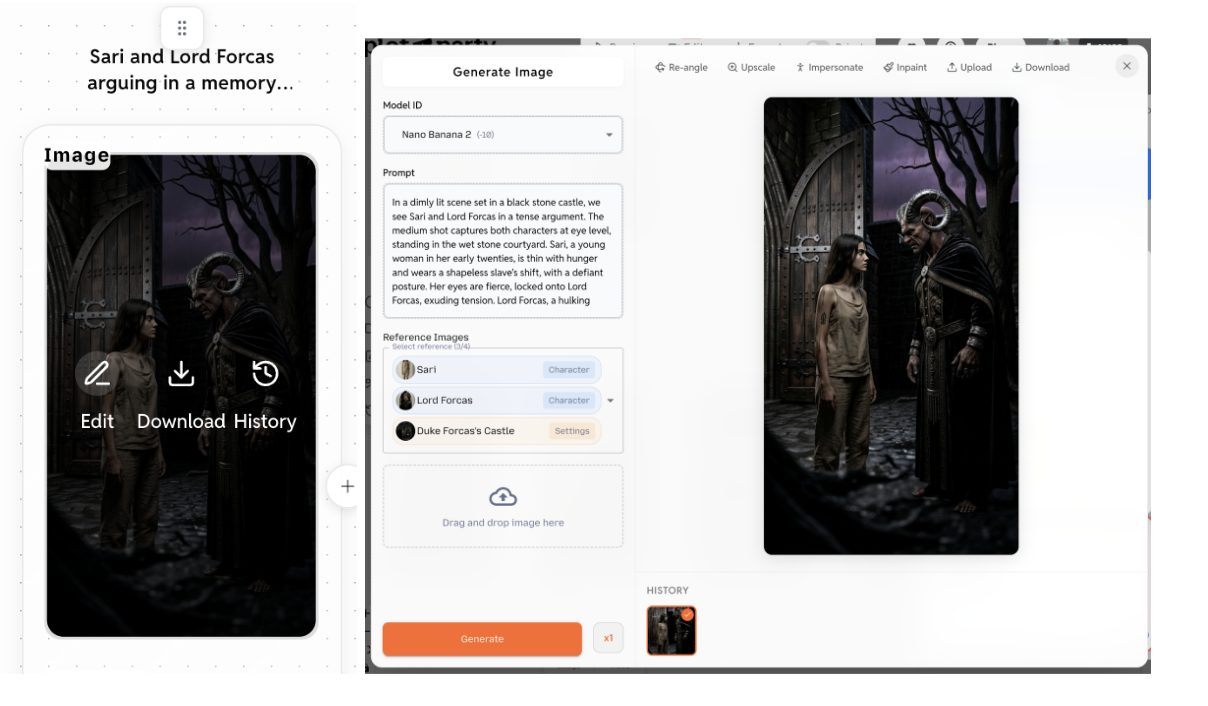
Option B — Direct editing: Hover over any element → click Edit → choose the model directly and tweak the prompt.
Both approaches give you fine-grained control. Use the chatbox for quick direction changes; use direct editing when you know exactly what prompt adjustment you need.
Step 5: Add More Frames
Need more scenes? Click the + button to add frames. Then ask the agent to either:
- Continue from the existing shot — maintains visual continuity
- Generate a brand new shot — for scene transitions or new settings
Step 6: Generate Videos
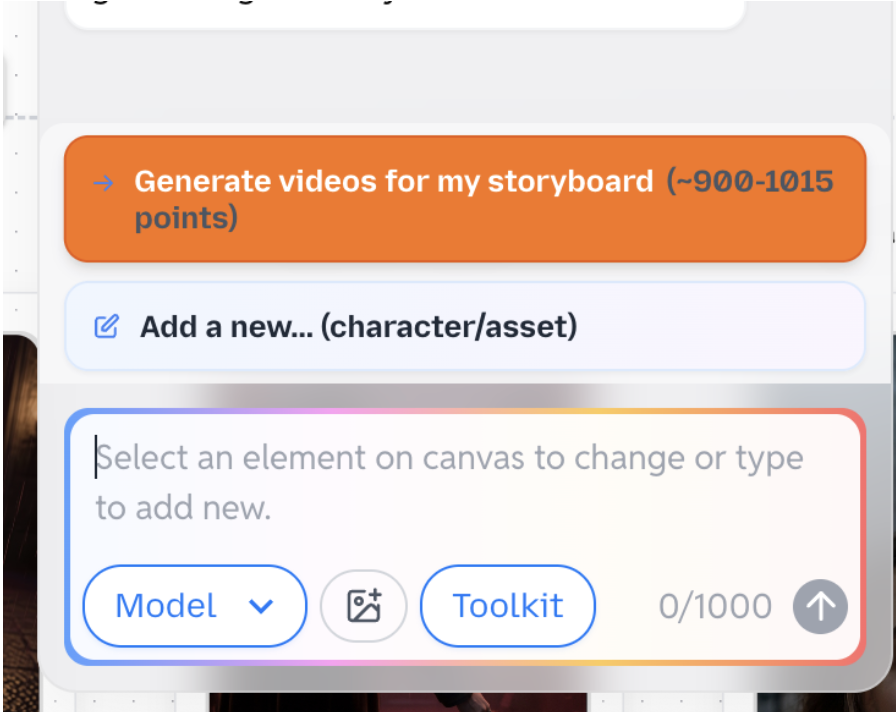
When your storyboard looks good, it's time to generate videos. You have two approaches:
| Approach | How | Best For |
|---|---|---|
| Batch process | Click "Generate videos for my storyboard" | When you're happy with all frames |
| One at a time | Click the "Video" button on each frame | When you want to review each clip before moving on |
The one-at-a-time approach gives you more control and avoids spending credits on scenes that might need storyboard tweaks first.
Step 7: Compile and Share
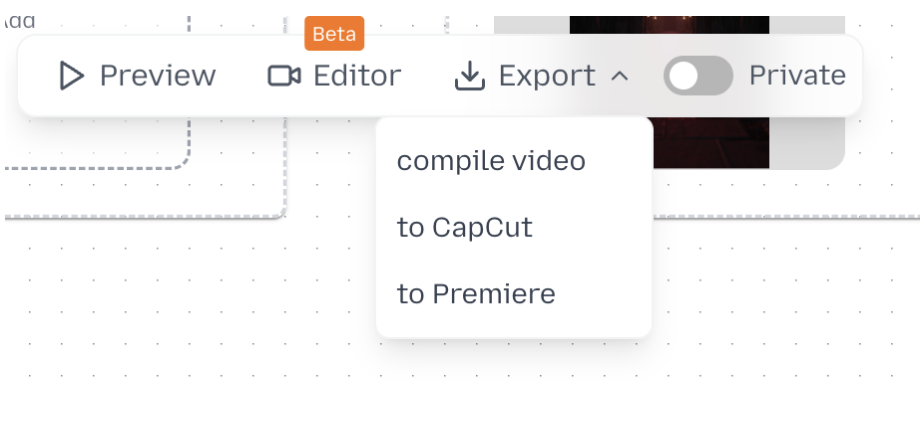
Once all your video clips are generated:
- Compile — Stitch clips into a single longer video
- Export — Download individual video files in bulk
- Share — Set your story to public and share the link with your audience on the Plot Party community
Your story gets its own shareable page on Plot Party that anyone can view.
Quick Reference: Cost Planning
| What | Fast Mode | Pro Mode |
|---|---|---|
| 1 minute video | ~$10 credits | ~$30 credits |
| Includes | 10-20 regenerations | 10-20 regenerations |
| Best for | Prototyping, narration | Final drama, best quality |
What's Next?
Ready to direct your first episode? Create your story now →
If you're looking to create a series of episodes, check out our guide to creating AI microdramas for tips on structuring serialized content. And to see what other creators are building, browse the community gallery.
For a comparison of the AI models available in Pro mode, see our AI video generation tools guide.
FAQ
How long should a Plot Party drama episode be?
A good first Plot Party drama episode should be around 1-2 minutes. That is long enough to create a clear emotional beat, but short enough to keep the story focused and make iteration affordable.
Do I need a finished script before using Plot Party?
No. You can start with either a loose storyline or a more polished script. A finished script gives the agent more structure, but a clear premise with characters, conflict, and tone is enough to begin.
Should I use Fast mode or Pro mode first?
Start with Fast mode when you are testing story structure, pacing, and scene order. Move to Pro mode once the script, characters, and storyboard feel right and you are ready to generate final-quality drama scenes.
Run Top AI Video & Image Models in Plot Party Studio
- Seedance 2.5 — Multi-reference AI video generation
- MiniMax H3 (Hailuo 03) — Reference-to-video and dialogue workflows
- SeedVR 2 — AI video upscaling and detail restoration
- Nano Banana 2 — Image generation and reference consistency
- GPT Image 2.5 — Image editing and character sheets
- Midjourney — Cinematic key art and world building